You can govern Microsoft Copilot securely by remediating oversharing, applying Purview-driven guardrails, enabling enterprise data protection, and enforcing auditing. If you haven’t done the first of those, pause your tenant-wide rollout now. Microsoft Copilot governance is not a single setting you toggle. It is a combination of permission hygiene, sensitivity labeling, data loss prevention tuned for AI, and an audit trail that can survive a regulator’s questions.
Before you enable Copilot for another department, run three things this week: a Microsoft Purview Data Security Posture Management (DSPM) for AI assessment, a SharePoint Advanced Management content assessment, and a role assignment review for who actually owns Purview and SharePoint admin duties. Copilot will surface whatever your permission structure already allows it to see, so if your SharePoint sites have been quietly overshared for six years, Copilot will find that out for you, instantly, in front of whoever asks it the wrong question.
Two numbers matter more than any dashboard on day one:
- The count of SharePoint sites flagged as high risk by DSPM for AI, typically sites with broad “Everyone except external users” or “Anyone” link exposure.
- The number of files across OneDrive and SharePoint still carrying an open “Anyone” sharing link.
Get both numbers before you expand Copilot licenses. Everything else in this article builds on fixing them.
Key Takeaways
Secure Microsoft Copilot governance depends on fixing existing oversharing before enabling broad access, then layering Purview-driven guardrails and continuous auditing on top of a clean permission baseline.
| Point | Details |
|---|---|
| Remediate before you scale | Run DSPM for AI and SharePoint Advanced Management assessments before expanding Copilot licenses to new departments. |
| Match licenses to controls | Optimized capabilities like DSPM for AI and advanced DLP require A5/E5/G5; foundational plans only cover baseline controls. |
| Separate web grounding from tenant data | Bing-grounded queries follow different privacy commitments than Copilot answers drawn from your own Microsoft 365 content. |
| Treat governance as a cadence | Run weekly remediation sprints and quarterly stakeholder reviews rather than a one-time policy rollout. |
| Bring in deployment support when needed | Singleclic helps regional organizations run oversharing remediation, Purview configuration, and on-prem options like Cortex for regulated tenants. |
Table of Contents
- Microsoft Copilot governance controls that actually matter
- How Copilot handles prompts, responses, and web searches
- The Copilot Control System’s three pillars, explained
- Step 1: Remediate oversharing before you scale Copilot
- Step 2: Build guardrails that stop oversharing from coming back
- Matching licensing tiers to the controls you need
- Making Copilot interactions auditable and defensible
- Governing agents, extensions, and third-party models
- Running governance as an ongoing program, not a project
- What Singleclic has learned deploying Copilot governance across MENA
- Training users so governance actually holds
- Folding Copilot into your broader Microsoft 365 compliance program
- Managing the rollout without breaking trust with users
- Editorial take: Copilot governance rewards discipline, not tooling
- Where Singleclic fits in your Copilot governance rollout
- Frequently asked questions
- Sources
Microsoft Copilot governance controls that actually matter
Governance for Copilot breaks into three overlapping domains, and treating them as one blob is where most rollouts stumble. Data security governs what Copilot can see and extract. AI security governs how Copilot behaves once it has that access, including prompt injection risks and agent permissions. Compliance and privacy governs what you can prove after the fact when an auditor, regulator, or internal investigator asks what happened.
Copilot itself doesn’t create new permission logic. It inherits whatever access controls, sensitivity labels, and DLP policies already exist in your Microsoft 365 tenant. If a user can open a file through SharePoint or Teams, Copilot can summarize it, extract from it, and surface it in a response to that same user. That inheritance model is exactly why oversharing remediation has to come before governance policy work, not after.
Three platforms do the heavy lifting:
- Microsoft Purview handles sensitivity labels, DLP policies scoped to Copilot, Insider Risk Management, and DSPM for AI.
- SharePoint Advanced Management (SAM) handles site-level risk assessment, restricted content discovery, and site lifecycle policies.
- Microsoft Defender correlates Copilot activity with broader threat signals, which matters when a compromised account starts using Copilot to search for sensitive content at scale.
Your license tier decides how much of this you can actually turn on. Foundational controls ship with A3, E3, and G3 plans. Optimized capabilities, including DSPM for AI, automatic labeling, and advanced DLP, require A5, E5, or G5. This is not a minor footnote. If your organization is running E3 and assuming Copilot governance is fully covered, it isn’t, and you need to know which specific gaps that leaves before you scale usage.
Pro Tip: Run DSPM for AI in report-only mode first if you’re nervous about false positives disrupting business users. It surfaces the risk without blocking anything, which gives your governance team a clean baseline before you flip on enforcement.
How Copilot handles prompts, responses, and web searches
Enterprise data protection (EDP) covers the prompts users type into Copilot and the responses it generates, and this protection is baked in by default rather than something you configure from scratch. It operates within what Microsoft calls the Microsoft 365 service boundary, and the commitments behind it are contractual, spelled out in the Microsoft Products and Services Data Protection Addendum and Product Terms. That distinction matters for anyone in a regulated industry writing a data processing agreement, because it gives you a specific document to cite rather than a marketing claim.
Web grounding works differently, and this is where a lot of governance reviews get sloppy. When Copilot needs to answer something that requires current information from the open web, it sends a generated search query to Bing. Microsoft strips tenant and user identifiers from that query before it goes out, and it’s governed by the Microsoft Services Agreement and Privacy Statement rather than your enterprise data protection terms. For most organizations that’s a manageable distinction. For a bank or a government entity handling classified case data, it’s a control you need to document and possibly restrict entirely through admin settings.
A frequent question from compliance teams: does anything typed into enterprise Copilot end up training the underlying foundation models? Microsoft’s documented position is no. Enterprise prompts and responses are not used to train the foundation large language models behind Copilot.
Three things to confirm before you sign off on a rollout:
- Web grounding is enabled or disabled deliberately, not by default inertia.
- Your legal team has a copy of the DPA language, not a paraphrase from a vendor blog.
- Regulated business units understand the difference between tenant-bound answers and Bing-grounded answers before they start relying on Copilot for research.
The Copilot Control System’s three pillars, explained
Microsoft organizes Copilot governance under a single framework called the Copilot Control System, and understanding its three pillars gives you a shared vocabulary for talking to your security team, your compliance team, and your executive sponsor without three different mental models colliding in the same meeting.
-
Security and governance. This pillar covers sensitivity labels, DLP policies scoped specifically to Copilot interactions, Insider Risk Management signals tied to AI usage, and DSPM for AI assessments. It’s configured almost entirely inside Microsoft Purview, and it’s typically owned by your information security or compliance team.
-
Management controls. This pillar covers app enablement, agent lifecycle management, integrated app permissions, and tenant-level Copilot settings. Configuration lives in the Microsoft 365 admin center and Copilot Studio, and ownership usually sits with IT operations or the Microsoft 365 platform team.
-
Measurement and reporting. This pillar covers adoption metrics, usage reports, DLP policy hit rates, and audit log volume. Copilot Dashboard and Purview Audit provide the raw data, and this pillar tends to sit with whoever owns IT governance reporting to the executive team.
Treat these as three separate accountability tracks rather than one combined Copilot project. When a rollout stalls, it’s almost always because one pillar got attention and the other two didn’t. A security team that locks down DLP but never assigns anyone to watch adoption metrics ends up governing a tool nobody uses. A platform team that enables agents broadly without security sign-off ends up explaining an incident nobody planned for.
Step 1: Remediate oversharing before you scale Copilot
Oversharing is the single most common reason Copilot deployments go sideways, and it has nothing to do with Copilot’s own settings. It’s inherited risk from years of permission sprawl that nobody cleaned up because nobody could see it clearly until an AI assistant started summarizing it on demand.
-
Run Purview DSPM for AI and SharePoint Advanced Management content assessments together. DSPM identifies which sites and files carry the highest oversharing risk based on sensitivity and exposure. SAM’s content assessment adds visibility into site-level permission structures, including ownerless sites, which DSPM alone won’t always flag clearly.
-
Apply interim protections while you investigate. Use SAM’s Restricted Content Discovery to exclude flagged sites from Copilot’s search index temporarily, and layer in Purview DLP exclusions for the highest-risk locations. This buys your team time without blocking Copilot entirely for the rest of the organization.
-
Fix the actual access problem. Remove “Anyone” links wherever they exist, repair broken permission inheritance on subsites and libraries, run a formal site access review, and assign a real owner to every site, especially the ownerless ones that tend to accumulate stale permissions for years.
-
Validate with real test queries. After remediation, run Purview audit reports against the remediated sites and test actual Copilot queries against previously flagged content to confirm it no longer surfaces. Don’t take the dashboard’s word for it; ask Copilot the question a curious employee would ask.
Pro Tip: Ownerless sites are the silent killer here. A site with no assigned owner rarely gets its permissions reviewed by anyone, ever, which makes it the exact kind of place where Copilot finds something nobody meant to expose. Run an ownerless-sites report before you do anything else.
Practical deployments fail most often not because Copilot’s controls are weak, but because unchecked preexisting oversharing was never dealt with before rollout. Remediation has to come first, every time, no exceptions for “we’ll get to it after launch.”

Step 2: Build guardrails that stop oversharing from coming back
Fixing today’s oversharing problem without building durable defaults just guarantees you’ll be back here in eighteen months doing the same cleanup. Guardrails turn a one-time fix into a standing policy.
Start with default sensitivity labels applied at the site and library level, paired with auto-label policies that classify new files and emails based on content patterns rather than relying on users to label things manually, which they mostly won’t do consistently. Configure Purview DLP policies scoped specifically to Copilot prompts and responses, not just to file sharing and email, since prompt-level leakage is a distinct risk surface that generic DLP rules don’t automatically cover.
Enforce Restricted Access Control at the provisioning stage so new SharePoint sites don’t launch with broad default permissions in the first place. Limit how freely users can create org-wide groups, and disable “Anyone” links at the tenant level unless a specific business case justifies an exception, reviewed and time-boxed.
- Set default sensitivity labels on all new SharePoint sites at creation, not after the fact.
- Turn on auto-labeling for common sensitive data patterns: financial records, health data, government IDs.
- Scope at least one DLP policy explicitly to Copilot prompt and response content.
- Restrict site creation permissions to a smaller admin-approved group rather than leaving it open to all users.
Roll this out in stages: pilot with one or two business units, watch DLP hit rates and user friction for two to four weeks, adjust the policy thresholds, then expand tenant-wide with monitoring dashboards already running. A guardrail policy that ships tenant-wide on day one without a pilot phase tends to generate either a flood of false-positive DLP blocks or, worse, gaps nobody catches until an incident does it for you.
Pro Tip: If you’re worried a strict DLP policy will break legitimate workflows, run it in test mode against real user activity for two weeks before enforcing it. The false positives you catch in test mode are cheaper than the help desk tickets you’ll get in production.
Matching licensing tiers to the controls you need
Governance capability maps directly to license tier, and pretending otherwise leads to a rollout plan built on features you can’t actually turn on. Foundational plans, A3, E3, and G3, give you baseline Purview capabilities: sensitivity labels, standard DLP, and basic audit. Optimized plans, A5, E5, and G5, unlock DSPM for AI, automatic labeling, and advanced DLP scoped to Copilot interactions specifically.
Four admin roles need to be assigned deliberately, not left to whoever happens to have Global Admin rights:
- Purview compliance admin, responsible for DLP policies, sensitivity label configuration, and DSPM assessments.
- SharePoint admin, responsible for site permission structures, SAM content assessments, and site lifecycle policies.
- Compliance administrator, responsible for retention policies, eDiscovery cases, and audit configuration.
- Global admin, responsible for license assignment, tenant-wide feature enablement, and final sign-off on Copilot rollout scope.
If your budget can’t support A5/E5/G5 everywhere immediately, stage it. Put optimized licenses on the departments handling the most sensitive data first, finance, HR, legal, and run foundational controls plus tighter manual oversight everywhere else until budget catches up.
Making Copilot interactions auditable and defensible
Every prompt a user sends to Copilot, along with the response and the content it references, gets logged and stored within Microsoft 365 services. That’s not an optional feature you switch on later; it’s how Copilot privacy and protection architecture works by default. Your job is making sure your admin team can actually search and produce that data when someone needs it, whether that’s an internal investigation, a regulatory request, or a legal hold.
Purview Audit and eDiscovery are your primary tools here. Standard audit logging captures Copilot interaction metadata automatically, but if you’re running custom agents built in Copilot Studio, deep auditing often requires enabling additional Purview features, and in some cases pay-as-you-go billing for extended audit retention. Confirm this is turned on before you deploy custom agents at scale, not after someone asks for interaction history you don’t have.
For retention, most organizations start with a default policy matching their existing Exchange and Teams retention windows, then apply targeted preservation holds when an investigation requires it. A few things to lock down early:
- Confirm standard Purview audit logging is active for Copilot before any department goes live.
- Check whether your custom agents need pay-as-you-go Purview billing for full audit visibility.
- Set a default retention period for Copilot interaction data consistent with your existing records retention policy.
- Build a documented process for applying legal holds specifically to Copilot interaction records.
Governing agents, extensions, and third-party models
Copilot’s risk surface splits cleanly into two categories, and conflating them in your governance policy creates blind spots. Grounding to tenant content, meaning Copilot pulling from your own SharePoint, Exchange, and Teams data, operates under your existing permission model and enterprise data protection terms. Web grounding and agent-based access patterns operate under different rules entirely, and both need separate line items in your governance documentation.
Treat every custom agent as a new application requiring admin review, not a Copilot feature that inherits blanket trust. Require explicit admin enablement through Integrated Apps before any agent goes into production, and review its requested permissions the same way you’d review a third-party app requesting Graph API access, because functionally, that’s exactly what it is.
- Require Integrated Apps admin approval for every custom agent before deployment, no exceptions for “internal” agents built by a business unit.
- Document which third-party models, Anthropic, OpenAI, or others, any agent or extension relies on, and where those subprocessors are documented in Microsoft’s disclosures.
- Restrict or disable third-party model connections entirely for agents touching regulated data categories until your compliance review is complete.
If you need a deeper read on where specific cloud AI models actually run and how subprocessor relationships are structured, independent analysis of Microsoft’s Azure AI offerings is worth reviewing alongside your own compliance documentation.
Running governance as an ongoing program, not a project
Governance work doesn’t end at go-live. Treat it as an operating rhythm with clear metrics, or it quietly decays back into the oversharing problem you just fixed.
Track a small set of KPIs consistently: oversharing incidents flagged post-remediation, DLP policy hit rates specific to Copilot prompts and responses, audit event volume tied to sensitive content access, and adoption metrics pulled from Copilot Analytics to show where usage is concentrated.
- Trigger immediate alerts for any new “Anyone” link detected on a previously remediated site.
- Run weekly remediation sprints for newly flagged high-risk sites rather than letting them queue up.
- Hold a quarterly governance review with security, compliance, and business unit stakeholders together in the same room.
- Use DSPM trend data and Copilot Analytics adoption numbers together to show leadership both risk reduction and usage return in the same report.
That combination, risk going down while adoption goes up, is the story that actually justifies the optimized license spend to a CFO.
What Singleclic has learned deploying Copilot governance across MENA
Across regional deployments, the same three mistakes surface repeatedly. Organizations assume legacy Information Rights Management still protects content once Copilot touches it, but legacy IRM doesn’t function with Copilot grounding at all; migration to Purview sensitivity labels isn’t optional. Ownerless SharePoint sites, common in organizations that have gone through multiple reorganizations, get missed in manual reviews and only surface once DSPM flags them. And agent testing gets skipped under launch pressure, leaving custom Copilot Studio agents live in production with permissions nobody actually reviewed.
- Migrate IRM-protected content to sensitivity labels before Copilot touches it, not after.
- Run an ownerless-site audit as a standing quarterly task, not a one-time cleanup.
- Require a documented permission review for every custom agent before production release.
For banks and government entities in the region where data residency requirements complicate a pure cloud Copilot deployment, an on-premise, compliance-first low-code platform like Cortex can handle the workflow automation and approval layers that need to stay on-tenant, while cloud Copilot handles the productivity layer where cross-border data flow is already acceptable.
The organizations that get this right treat oversharing remediation as infrastructure work, not a Copilot task. Fix the permission model once, properly, and every AI tool you deploy afterward inherits that discipline instead of exposing its gaps.
Training users so governance actually holds
Every technical control you build gets undermined by a user who doesn’t understand why it exists. Training for Copilot governance needs to go further than a generic “how to use Copilot” session, because the risks here are behavioral as much as technical.
Start with a short, mandatory session for anyone getting Copilot access that covers three things specifically: how Copilot inherits their existing file permissions rather than granting new access, what sensitivity labels mean in practice when they’re drafting a prompt, and how to recognize when a Copilot response is drawing from web grounding versus tenant content. Most users have no intuition for that last distinction, and it matters when they’re relying on an answer for a compliance-sensitive decision.
Build a second, shorter track for site owners and department heads specifically about oversharing. They’re the ones who can actually fix a broken permission structure or flag a site that should never have been open in the first place, and most of them have never been told that responsibility now extends to what an AI assistant can extract from their content.
Reinforce this with something concrete rather than a slide deck nobody remembers: a one-page reference card showing what sensitivity labels do, what happens when DLP blocks a Copilot prompt, and who to contact if a user thinks Copilot surfaced something it shouldn’t have. Pair that with a lightweight feedback channel, since your DLP policy tuning depends on users flagging false positives quickly rather than working around a blocked prompt silently.
Refresh this training every time you update a major guardrail policy. A DLP rule that changes without a corresponding note to affected teams generates confused help desk tickets, not compliance.
Folding Copilot into your broader Microsoft 365 compliance program
Copilot governance shouldn’t run as a separate compliance track sitting next to your existing Microsoft 365 compliance program. It should be an extension of it, using the same Purview instance, the same retention policies, and the same audit infrastructure you already have in place for email, Teams, and SharePoint.
Practically, that means your existing data classification taxonomy, sensitivity labels, retention schedules, and DLP rule sets should extend to cover Copilot interactions rather than getting duplicated into a parallel Copilot-specific policy set. If your compliance team already maintains a retention schedule for financial records under a records management program, that same schedule should govern Copilot prompts and responses touching financial data, not a separate rule invented for AI.
This integration also simplifies your regulatory reporting. When an auditor asks how you’re managing AI-related data risk, the answer should reference your existing Purview compliance framework with Copilot-specific policies layered in, not a standalone AI governance document that duplicates definitions and creates room for contradictions between the two. Insider Risk Management policies that already monitor for data exfiltration patterns should extend to flag unusual Copilot usage, like a user suddenly running dozens of queries against financial data outside their normal role.
The organizations that struggle here are usually the ones that stood up a separate “AI governance committee” disconnected from their existing information governance function. Copilot is a new interface to data you already govern. Treat it that way organizationally, not as a new category requiring its own bureaucracy from scratch.
Managing the rollout without breaking trust with users
Every guardrail you add has the potential to block a legitimate workflow, and how you communicate that determines whether users work with your policy or route around it. Change management for Copilot governance policies deserves the same rigor you’d apply to a major ERP configuration change, not the informal “we updated a setting” treatment IT teams sometimes give security policy updates.
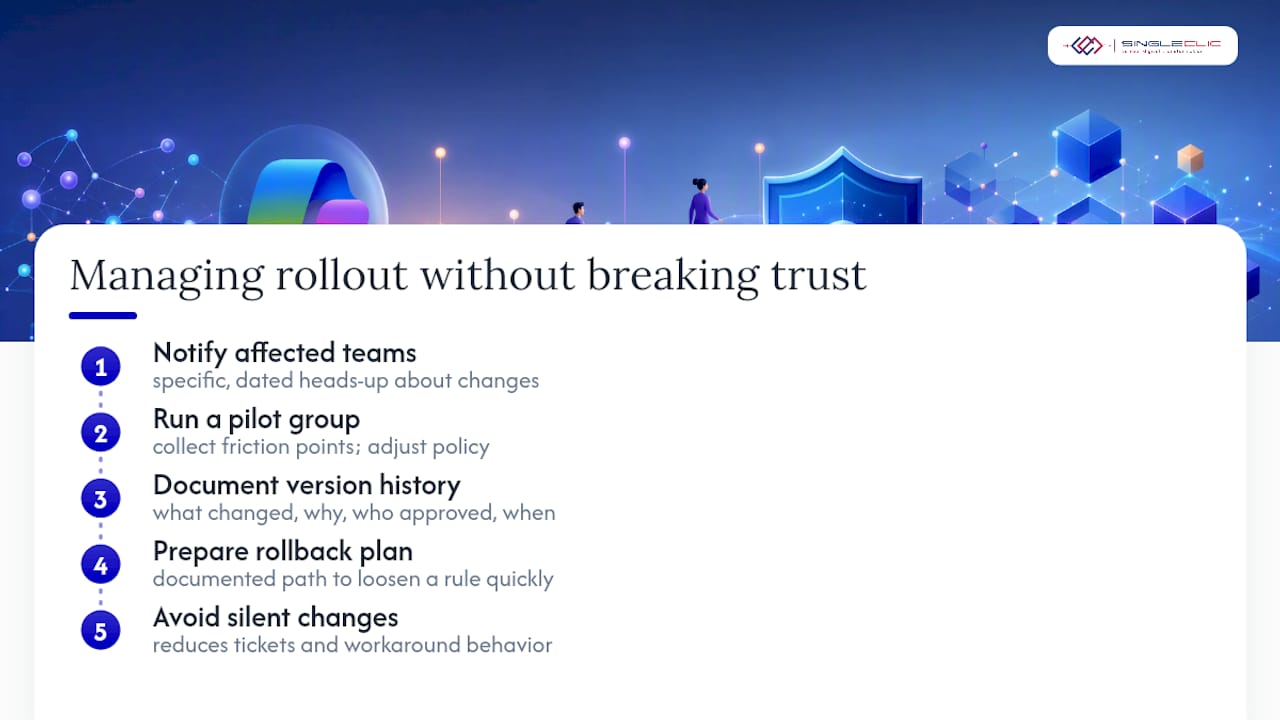
Before rolling out a new DLP policy or sensitivity label default, notify affected teams with a specific, dated heads-up explaining what will change and what they might notice, like a prompt getting blocked or a file needing a label before it can be summarized. Give a pilot group first exposure, collect real friction points, and adjust the policy before it hits the wider tenant. Silent policy changes generate the most support tickets and the most workaround behavior, because users assume something’s broken rather than understanding it’s intentional.
Document every governance policy change with a version history: what changed, why, who approved it, and when it went live. This matters twice over. It gives your compliance team a defensible record when an auditor asks why a policy exists, and it gives your help desk a fast answer when three people submit the same ticket about a blocked prompt on the same afternoon.
Build a lightweight rollback plan for every guardrail before you deploy it, not after something breaks. If a new DLP rule generates a spike in false positives that’s disrupting a business-critical workflow, your team needs a documented path to loosen that specific rule quickly without unwinding the entire policy. Governance that can’t flex quickly when it’s wrong loses executive support fast, and once that trust erodes, every future policy proposal gets harder to push through.
Editorial take: Copilot governance rewards discipline, not tooling
Most of the conventional advice on this topic treats Copilot governance as a licensing and configuration exercise, buy E5, turn on DSPM, done. That framing undersells the real work. The Copilot Control System gives you a strong technical framework, but the framework doesn’t fix a decade of SharePoint permission sprawl by itself.
What the evidence actually supports is a sequencing discipline: remediate first, then build guardrails, then operate continuously. Skip the remediation step and every optimized license you buy is protecting a house with the back door already open. Regional deployments make this even clearer. Organizations with legacy IRM assumptions or ownerless site sprawl hit the same wall regardless of license tier, because the gap isn’t Microsoft’s controls, it’s operational hygiene nobody assigned an owner to.
Prioritize the oversharing audit before anything else. It’s unglamorous work compared to configuring an AI feature, but it’s the difference between governance that holds and governance that looks good in a slide deck until Copilot proves otherwise in front of an executive.
Where Singleclic fits in your Copilot governance rollout
Reading a Microsoft documentation set and actually executing a tenant-wide remediation and guardrail rollout across finance, HR, and operations are two different projects, and most internal IT teams are already stretched thin running the systems that keep the business operating day to day. Singleclic works alongside your team to run the DSPM assessments, fix the SharePoint permission sprawl, and configure the Purview policies this article describes, without pulling your internal staff off their existing workload for months.
For organizations in regulated sectors, banking, healthcare, and government across the region, where data residency rules make a pure cloud rollout complicated, Singleclic also brings Cortex, an on-premise, Arabic-enabled low-code platform that can host the approval and workflow layers your compliance team needs to keep on-tenant while Copilot handles the rest. That combination matters if your Microsoft 365 environment is tied into a broader Microsoft Dynamics 365 deployment, since governance decisions made for Copilot rarely stay isolated from your ERP and CRM data model for long.
If your rollout is currently paused because nobody’s confident the permission structure underneath it is clean, that’s exactly where to start a conversation. Request a Copilot governance readiness review from Singleclic and get a clear picture of your oversharing risk before you expand licenses any further.
Frequently asked questions
What is the first step in Microsoft Copilot governance?
Remediate oversharing before expanding Copilot access. Run a Purview DSPM for AI assessment and a SharePoint Advanced Management content assessment to find high-risk sites and files with open sharing links, then fix access before enabling Copilot broadly.
Does Microsoft Copilot use enterprise prompts to train its AI models?
No. Enterprise prompts and responses are not used to train the foundation large language models behind Copilot, and enterprise data protection applies to that content within the Microsoft 365 service boundary.
Which Microsoft 365 license do I need for full Copilot governance controls?
Foundational controls come with A3, E3, and G3 licenses. Optimized capabilities, including DSPM for AI, automatic labeling, and advanced DLP for Copilot, require A5, E5, or G5.
Can Copilot access files protected by legacy Information Rights Management?
Legacy IRM protections don’t function with Copilot grounding. Organizations relying on IRM need to migrate that content to Purview sensitivity labels to maintain protection.
How is Copilot interaction data stored for auditing and legal holds?
Prompts, responses, and referenced content are logged within Microsoft 365 services. Admins use Purview Audit and eDiscovery to search this data, and custom Copilot Studio agents may require additional Purview features or pay-as-you-go billing for deep audit visibility.
Sources
- Enterprise data protection (Microsoft Copilot)