Use the native Approvals app in Teams when you need a quick, one-off sign-off from a colleague. Reach for a Power Automate workflow when the approval needs to trigger automatically, pull data from SharePoint or Dynamics 365, or route through more than one condition. That single distinction, ad-hoc versus automated, decides almost every configuration choice you will make next.
TL;DR:
- Basic approvals in Teams are suitable for quick, manual sign-offs without system logic, but tenants can disable the app in the Teams admin center, affecting reliability.
- Power Automate workflows are necessary when automating triggers, system updates, conditional responses, or complex routing involving more than simple approve or reject options.
- Approval types in Power Automate include everyone must approve, first to respond, and custom options, with some limitations on Outlook actionable message display for multiple responses.
- All approval data is stored in the tenant’s Dataverse default environment, which has capacity limits and requires governance to avoid performance issues over time.
- Building reliable approval systems demands considering data storage, timeout constraints, and future query needs, often requiring integration with enterprise systems or partner solutions for scalability.
Table of Contents
- What the approvals app in Teams is and when it fits
- Step by step: create a basic approval from the Teams approvals app
- When and how to build a Power Automate approval workflow
- Approval types, response options, and routing patterns to use
- Governance, storage, and lifecycle considerations
- Troubleshooting, gotchas, and testing checklist
- Singleclic perspective: enterprise patterns and when to bring in a partner
- What actually matters when you design these workflows
- How Singleclic helps you scale approval automation
- Sources
- FAQ
What the approvals app in Teams is and when it fits
The Approvals app is Teams’ built-in hub for requesting and tracking sign-offs without leaving a chat or channel. It organizes activity into sent requests, received requests, and templates, and approval cards can surface directly inside a chat, a channel post, or the app itself. Microsoft distinguishes “basic approvals,” created manually inside Teams, from workflow approvals generated by a Power Automate flow, and both types are stored in the tenant’s Dataverse default environment.
Basic approvals work well for situations that do not need system logic:
- A manager signing off on a purchase request raised in chat.
- A template-based approval for time-off or expense confirmations.
- A quick yes or no needed before a meeting or deadline.
One admin detail matters before you rely on this app for anything recurring: tenant administrators can disable the Approvals app in the Teams admin center, so confirm it is active for your organization before building a process around it.
Step by step: create a basic approval from the Teams approvals app
Setting up a basic approval takes a few minutes, and testing it properly takes only a little longer.
- Open Teams, select View more apps, and choose Approvals.
- Click New approval request.
- Fill in the title, the approver or approvers under “Assigned to,” and any supporting details.
- Attach files if the decision needs supporting documents, or start from a saved template.
- Decide whether you need a response from every approver or just the first one to reply.
- Select Send.
If more than one person needs to weigh in, turn on “Require a response from all approvers.” If any single approval is enough to move forward, leave it off so the request closes as soon as someone responds.
Pro Tip: Send a test request to a co-worker before rolling this out to a team, then confirm it appears correctly in your Sent tab and that the approver actually receives a notification.
When and how to build a Power Automate approval workflow
Basic approvals stop being enough once a process needs to start itself, touch another system, or branch based on conditions. Build a Power Automate workflow when you need any of the following:
- An automatic trigger, such as a new item in SharePoint or a changed record in Dynamics 365.
- Integration with another system so the approval updates a record once someone responds.
- Conditional routing, where the next step depends on the approver’s answer.
- Custom response options beyond a simple approve or reject.
The high-level recipe is consistent across most use cases: pick a trigger, add a Start and wait for an approval action, choose the approval type, then branch with condition actions to handle each possible outcome, updating the source record and notifying the requester at the end. Power Automate can trigger workflow approvals from more than 350 connectors, which is what makes it practical for connecting Teams to SharePoint, Dynamics 365, or a custom line-of-business system.
Common triggers include an item created in a SharePoint list, a record change in Dynamics 365, an incoming email, or an event from a custom connector. For approvals that might run longer than expected, split the flow: one flow creates the approval, and a second flow reacts once a response lands in Dataverse, so the process does not depend on a single flow staying alive the whole time.
Approval types, response options, and routing patterns to use
Power Automate’s Approvals connector defines four standard approval types, and picking the right one avoids a lot of rework later.
- Everyone must approve: every assigned approver has to respond before the request closes.
- First to respond: the request closes as soon as any one approver responds.
- Custom responses, wait for all: approvers choose from response options you define, and the flow waits for everyone.
- Custom responses, wait for one: the same custom options, but the flow moves on after the first reply.
The connector also supports sequential approvals, where a request moves through one approver at a time or through separate stages, useful when a discount needs a manager’s approval before finance signs off. One limitation worth planning around is that Outlook actionable messages only display the first five custom response options, so approvals with more choices should point approvers to Teams or the mobile app instead. A straightforward mapping helps here: use “everyone must approve” for budget sign-offs, “first to respond” for on-call coverage requests, and custom responses for anything with more than two possible outcomes, like tiered expense limits.
Governance, storage, and lifecycle considerations
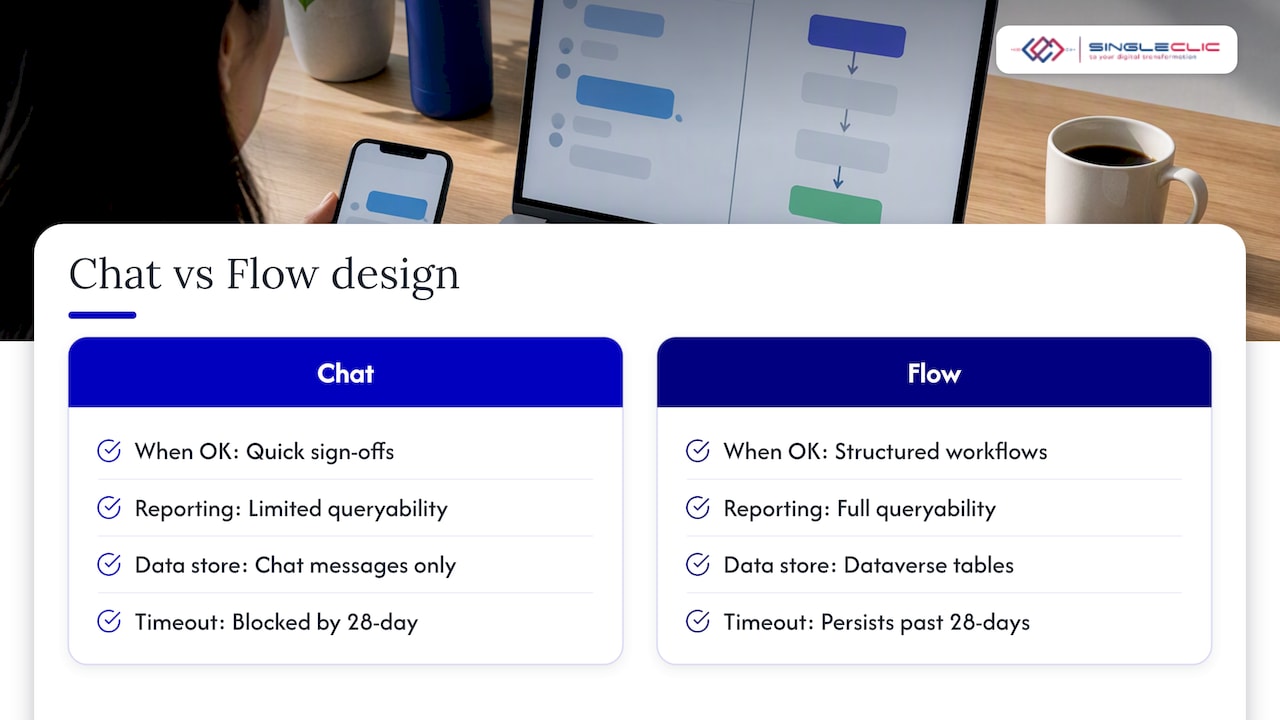
Every approval you create in Teams, basic or workflow-driven, lands in the tenant’s Dataverse default environment, and that environment has capacity limits. As approval volume grows, IT teams typically need to evaluate whether to upgrade from the default environment to a fully licensed Dataverse environment with more headroom.
A few governance habits keep this manageable:
- Apply tenant-level policies and use CoE Starter Kit templates to track environment usage and automate governance tasks.
- Watch approval flows for the documented 28-day timeout, since anything waiting longer risks becoming an abandoned record.
- Design long-running processes with checkpoints or reminders well before that window closes.
- Review who can enable or disable the Approvals app, and which connectors are permitted, in the Teams admin center.
Pro Tip: Treat the 28-day limit as a design constraint, not an edge case: if an approval could realistically sit unanswered for weeks, build in an escalation step long before that deadline.
Troubleshooting, gotchas, and testing checklist
Most production issues with Teams approval flows trace back to a handful of known patterns.
- Avoid separating the “Create an approval” action from “Start and wait for an approval” unless you have a specific reason, since a response arriving before the wait action starts can leave the flow stuck.
- Watch for deprecated approval actions in older flows and migrate them to the current Approvals connector.
- Confirm the “Assigned to” field uses a valid email or UPN format before publishing a flow.
- Test reassignment, guest approvals through Microsoft Entra, and notifications in both Teams and email before rollout.
- If a flow times out with an orphaned record still showing in the Approvals center, an admin can delete it manually and, where needed, split the process into a sender flow and a separate responder flow.
Singleclic perspective: enterprise patterns and when to bring in a partner
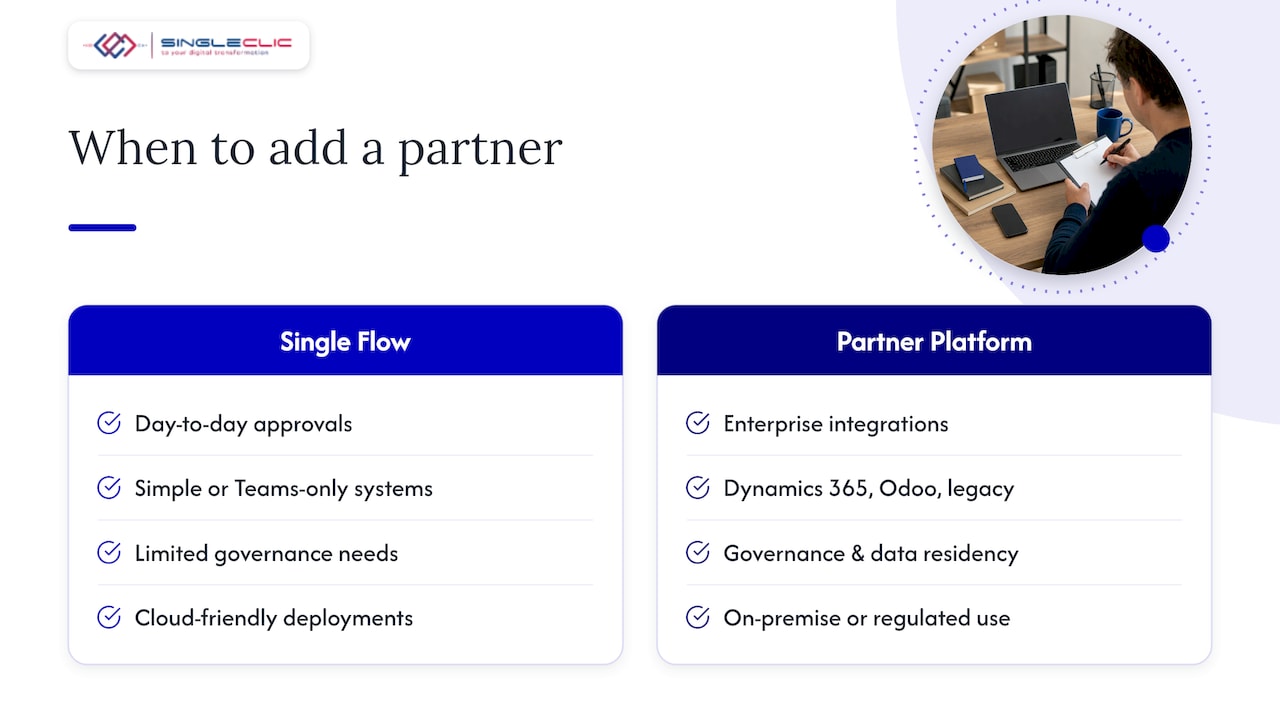
Basic approvals and single flows cover most day-to-day needs, but enterprises running approvals across Dynamics 365, Odoo, or legacy systems usually hit governance and integration questions that a single flow cannot answer alone, as explained in empowering customer support teams to fuel profit growth. That is the point where bringing in a partner tends to pay off, particularly for regulated industries or on-premise deployments where data residency rules limit what can live in a public cloud environment.
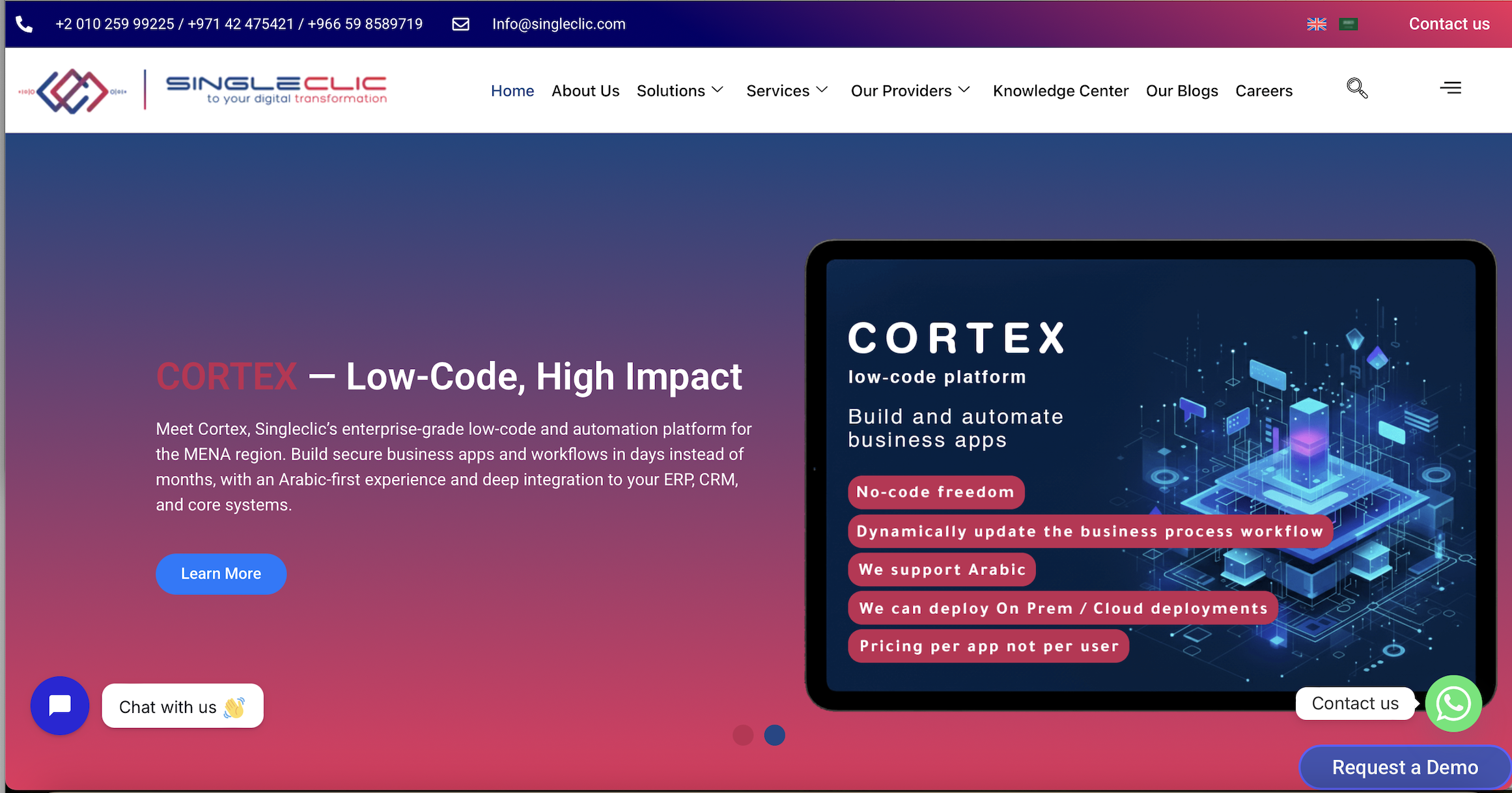
Singleclic builds these connections as part of its Microsoft Dynamics 365 and Odoo integration work, linking Teams approvals to the systems that actually hold the underlying records. For organizations that need Arabic-language interfaces or on-premise control, our Cortex low-code platform connects approvals, ERP, CRM, and legacy workflows without requiring custom code for every process change. You can see how this plays out in practice in our guide to connecting Dynamics 365 and Odoo to enterprise processes.
What actually matters when you design these workflows
Most guidance on Teams approvals focuses on the button clicks and skips the part that determines whether the process survives contact with a real organization: where the data lives and what happens when a request sits unanswered. Dataverse capacity and the 28-day timeout are not footnotes, they are the two things most likely to break a workflow six months after launch, once volume grows past what anyone tested.
The conventional advice treats basic approvals and Power Automate flows as a simple beginner-versus-advanced ladder. That framing undersells how often the two need to work together: a basic approval is fine until the day someone asks for a report on how long approvals take, and at that point you need the data structure a flow provides. My honest recommendation is to start every new approval process by asking who needs to query the outcome later, not just who needs to click approve today. That question alone will tell you whether a chat-based approval is enough or whether you are building a workflow from day one.
— Tamer Badr
How Singleclic helps you scale approval automation
Building one Power Automate flow is straightforward. Making dozens of approval workflows reliable across ERP, CRM, and legacy systems, while meeting the data residency rules that regulated industries face, is a different problem tackled regularly by experts in Saudi Arabia and the UAE.
Singleclic can help with:
- Auditing existing Teams and Power Automate approvals for governance gaps.
- Piloting a workflow that connects approvals to Dynamics 365 or Odoo records.
- Designing a Dataverse environment and policy plan built for growth.
- Building on-premise, Arabic-enabled approval workflows with Cortex.
Visit our services page to schedule a discovery call and map out the right approach for your organization.
Sources
FAQ
Does Microsoft Teams have a workflow tool?
Yes, Teams includes a native Approvals app for ad-hoc requests, and it connects directly to Power Automate for workflows that need triggers or system integration. Both types of approvals are stored in the same Dataverse default environment.
What is an approval workflow?
An approval workflow is a defined process where a request, such as a purchase or a document, is routed to one or more people who must approve or reject it before the next step happens. In Power Automate, this typically uses a “Start and wait for an approval” action tied to a trigger and follow-up logic.
What is an approval workflow in SharePoint?
A SharePoint approval workflow is a Power Automate flow triggered by an event in a SharePoint list or library, such as a new document being uploaded, that then routes an approval request to designated reviewers. The outcome can update the SharePoint item and notify the requester automatically.
How do I approve a workflow request?
You can respond to an approval request directly inside Teams, through an email actionable message, in the Power Automate approvals center, or via the mobile app. For requests with more than five custom response options, use Teams or the approvals center since email only displays the first five choices.
When should I use Power Automate instead of the basic Teams approvals app?
Choose Power Automate when the approval needs to start automatically, integrate with a system like Dynamics 365 or SharePoint, or follow conditional logic with multiple outcomes. The basic Teams app is better suited to one-off, manually created requests that do not need any system trigger.