A Dynamics 365 approval workflow routes a document or record through defined approvers and enforces those approvals before any change takes effect. To get started, open the Workflow page in Business Central or Finance & Operations, or launch a Power Automate flow when the approval needs to reach across systems or involve complex conditions.
TL;DR:
- Approval workflows require verified environment setup, including Dataverse access, correct licensing, and SMTP configuration, before building or testing.
- Configuring approval steps involves setting policies for completion, approval delegation, time limits, and escalation, which should be tested thoroughly in sandbox environments.
- Notifications must be customized and reliably delivered via email or internal notes, with SMTP functioning correctly, to ensure approvers receive requests promptly.
- Extending approvals across systems uses Power Automate, which enables multi-stage, long-duration, or complex decision processes that native workflows cannot support alone.
- Running approval queues with department-level, queue-based assignments improves reliability and scalability, especially when managing large volumes or multiple locations.
Table of Contents
- Quick prerequisites before you build anything
- Step-by-step setup: build and test a basic approval workflow
- Configuring approval steps, completion policies, and escalation
- Making sure approvers actually see the request
- Extending approvals with Power Automate
- Advanced tips for keeping approvals reliable at scale
- Choosing between Cortex, a BPM project, and Power Automate
- What to lock in during week one
- How Singleclic helps you build approvals that hold up
- Sources
- FAQ
Quick prerequisites before you build anything
Before touching the workflow designer, confirm your environment can support it. A rushed setup causes more support tickets than a missing feature ever will.
- Confirm you have Dataverse access and the licensing needed to create flows, since Power Automate approvals provision a Dataverse database on first use.
- Create workflow users and approval users in Dynamics 365 before assigning any steps.
- Verify SMTP is configured and the job queue is set to start automatically from the server, a requirement for Business Central notifications.
- Decide early whether the built-in workflow editor or a Power Automate extension fits the scenario better.
Step-by-step setup: build and test a basic approval workflow
Once the prerequisites are in place, the actual build is fast if you follow a consistent sequence.
- Open the Workflow page and select New workflow, then choose the event that should trigger approval (a new vendor, a purchase order over a threshold, a journal before posting).
- Choose the response, typically an approval request, and define any conditions that narrow when the workflow fires.
- Fill in the workflow lines: event, conditions, and response, then save the workflow.
- Activate the workflow so it starts capturing matching records.
- Set up Approval User Setup to define who approves what, and configure the Notification Schedule so approvers know when requests are waiting.
- Test with a sample purchase or sales record, then check the workflow step instances to confirm the record moved through the right approvers in the right order.
Workflows exist to enforce business logic such as master data approvals, sales and purchase document approvals, and journal approvals, and the new values are never applied until the workflow completes, which is exactly the control most finance teams are trying to build. That mechanic is described directly in Microsoft’s guide to using approval workflows.
Pro Tip: Run your first test with a low-value record and a single approver so you can isolate configuration errors before adding escalation logic.
Configuring approval steps, completion policies, and escalation
Once the basic workflow runs, the real tuning happens in the approval step properties. This is where you decide how strict, how fast, and how forgiving the process should be.
- Completion policies vary by risk: use all approvers for finance-critical items, majority for balanced committees, and single or first responder for low-stakes requests.
- Prevent the submitter from approving their own request and designate a final approver for exceptions, both configurable directly in the approval step.
- Set time limits so overdue requests trigger escalation instead of sitting untouched.
- Test escalation sequences in a sandbox before trusting them in production.
- Route low-value items to automatic approval to cut down on reviewer fatigue.
Configuring approval step properties in Finance & Operations lets approvers approve, reject, delegate, request changes, or reassign, giving administrators far more control than a simple yes or no gate.
Making sure approvers actually see the request
A workflow that fires correctly but never reaches an inbox is worse than no workflow at all, because it creates a false sense of control.
- Customize the notification content, including Report 1320, so emails carry the context approvers need to act without opening the system first.
- Set the Notification Schedule per user and confirm the job queue’s Start Automatically From Server setting is enabled.
- Review archived and active workflow step instances regularly to catch delayed notifications before they become bottlenecks.
Business Central’s default notifications go out by email or internal note, but email delivery depends on SMTP being configured correctly for both the sender and the recipient, a detail Microsoft flags directly in its workflow notification setup guide. Skipping that step is the single most common reason approvers say they “never got the request.”
Extending approvals with Power Automate
Native workflows handle most single-system scenarios well, but cross-system approvals, custom responses, or multi-stage sign-offs usually call for Power Automate.
- Choose the approval type that matches the decision: first to respond for speed, everyone must approve for shared accountability, or custom responses when yes/no isn’t enough.
- Trigger the flow from an F&O business event, then use Start and wait for an approval, and complete the original workflow work item back in Dynamics 365 once a decision is made, a pattern documented in Microsoft’s business events and workflow approvals reference.
- For approvals that might run longer than 30 days, store the status in Dataverse and split the process into two flows, one to initiate and one to complete, since standard approval actions can time out on very long-running cases.
- Include record summaries, quote totals, or invoice line detail directly in the approval card so reviewers can decide without switching screens.
Our low-code approach to enterprise workflow automation covers these integration patterns in more depth for teams connecting Power Platform to Dynamics 365.
Pro Tip: Build the completion step first in Power Automate, then the trigger. It forces you to confirm the workflow API call actually closes the work item before you spend time on the approval card design.
Advanced tips for keeping approvals reliable at scale
Once a workflow is live, the challenges shift from setup to operations.
- Assign department-level approvals to work item queues rather than individuals, since queues avoid single-point-of-failure assignment when someone is out of office.
- Always run the Test workflow condition feature before publishing changes to a production workflow.
- Retain approval outcomes, comments, and attachments in a durable store for audit purposes.
- Watch job batch and top-picking behavior closely when large volumes of records post at once, since queued approvals can back up quickly under load.
Our approval process guide for operational excellence walks through governance patterns for teams scaling this beyond a handful of departments.
Choosing between Cortex, a BPM project, and Power Automate
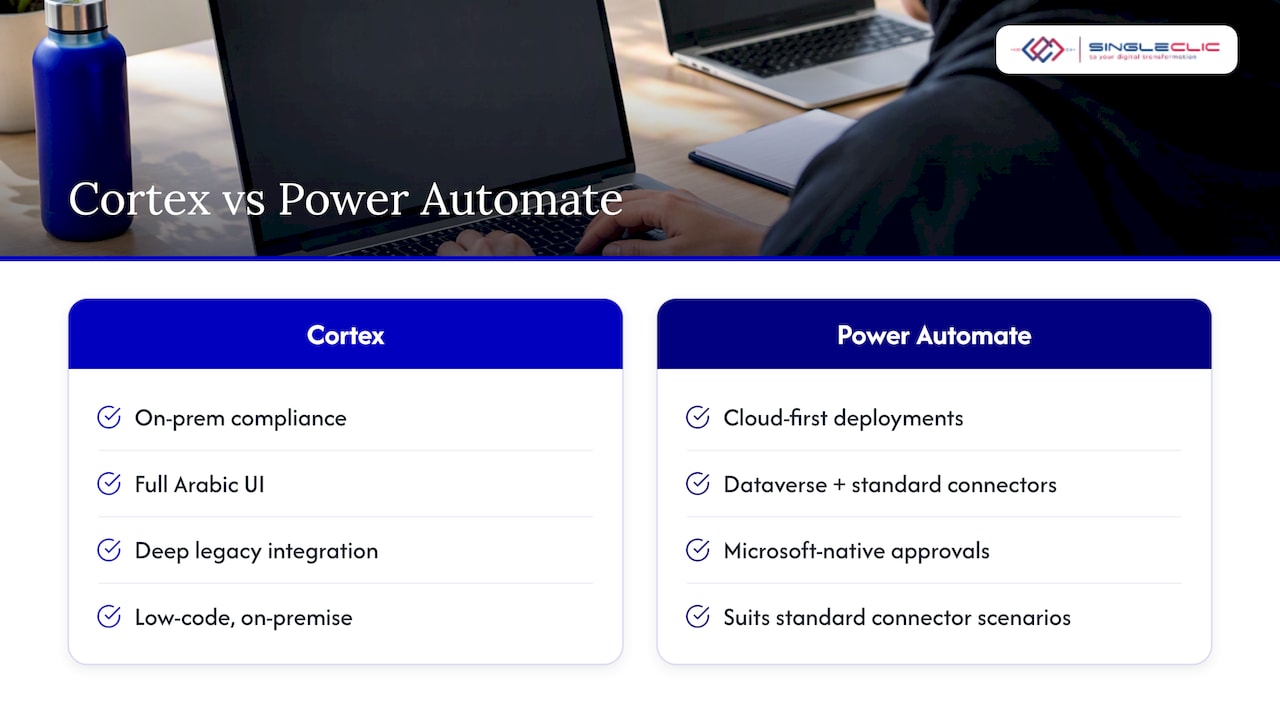
Cortex, our Arabic-enabled, on-premise low-code platform, fits scenarios that need strict on-prem compliance, full Arabic UI, or deep integration with legacy systems that predate cloud connectors. Power Automate paired with Dataverse tends to suffice for cloud-first organizations running standard connectors and Microsoft-native approvals.
Our implementation checklist covers the data model, notification design, SLA targets, failover behavior, and operational handover, details we walk through in our Dynamics 365 implementation guide. Enterprises in construction, healthcare, and banking across the region tend to weigh these factors differently depending on how much legacy infrastructure they carry.
What to lock in during week one
Start conservative: require majority or full approval on anything finance-critical, and automate the low-value items so reviewers aren’t burning attention on routine requests. Test every escalation path in a sandbox before it ever touches a live approval queue.
— Tamer Badr
How Singleclic helps you build approvals that hold up
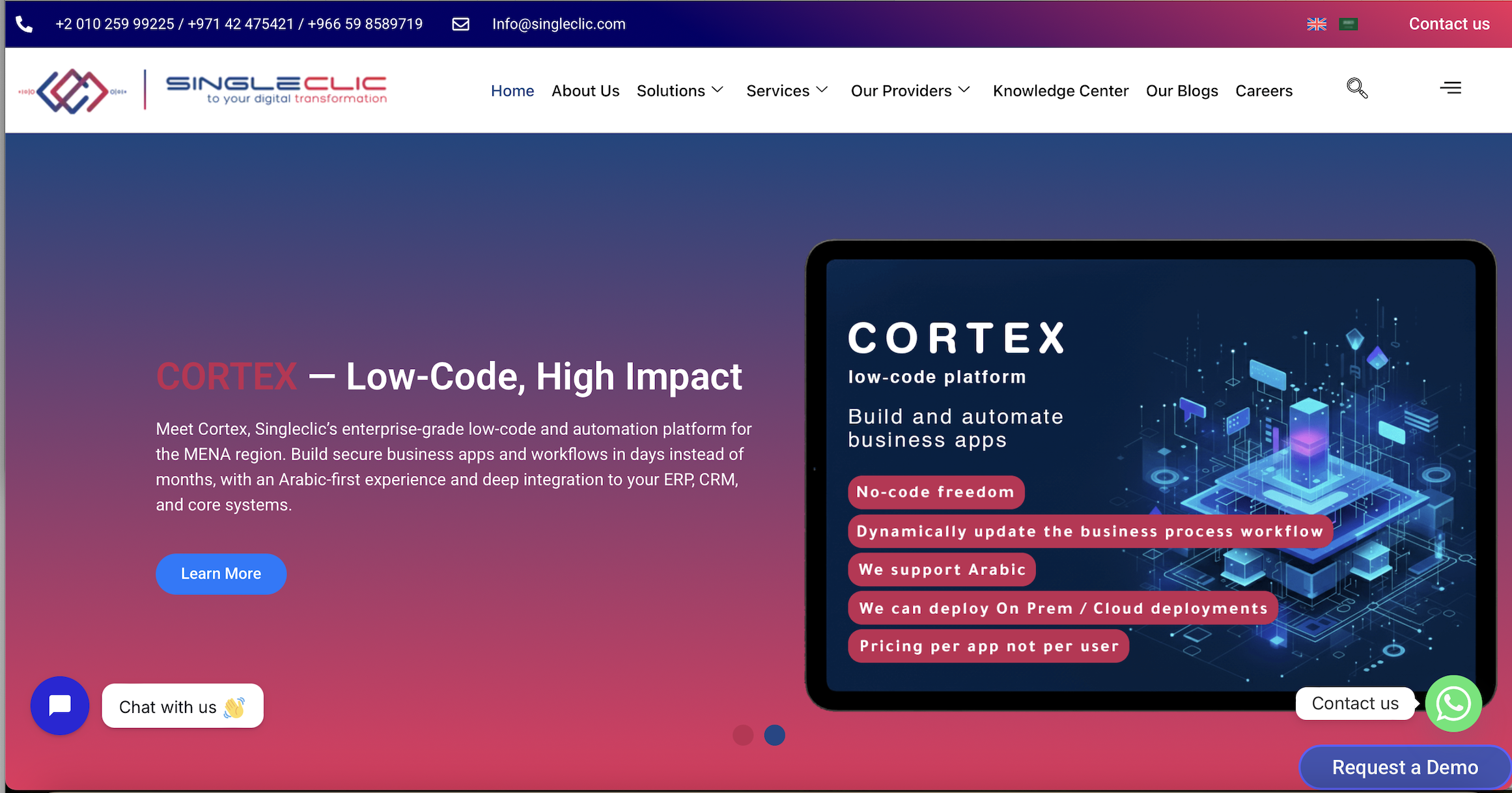
Getting an approval workflow right is less about the tool and more about the discipline behind it, and that’s where a regional implementation partner earns its keep. An implementation partner can build Dynamics 365 approval workflows and, where Arabic UI or on-premise deployment matters, extend them through a low-code BPM platform connecting approvals, ERP, CRM, data, and legacy systems without custom code.
- Audit-ready approval trails with retained comments, attachments, and outcomes.
- Faster SLA compliance through queue-based assignment instead of individual bottlenecks.
- Notifications and escalation paths tuned to how your teams actually work, not a generic template.
If your organization is weighing a Dynamics 365 rollout or an approval redesign, visit our Microsoft Dynamics 365 services page to talk through what fits your environment.
Sources
- Get started with approvals in Power Automate | Microsoft Learn
- Setting up approval workflow notifications – Business Central | Microsoft Learn
- Using approval workflows – Business Central | Microsoft Learn
FAQ
What is an approval workflow?
An approval workflow is a defined sequence that routes a document or record to designated approvers before any change is applied. In Dynamics 365, this covers scenarios like purchase orders, journals, and master data changes, and the new values only take effect once the required approvals are complete, as described in Microsoft’s workflow overview.
What are workflows in Dynamics 365?
Workflows in Dynamics 365 are configurable rules that enforce business logic by requiring approval before sensitive actions happen, such as posting a finance journal or changing a vendor record. They’re built from an event, a set of conditions, and a response, typically an approval request sent to one or more approvers.
How do I approve a workflow request?
Approvers respond to a workflow request through email, the Power Automate action center, or directly inside Dynamics 365, choosing to approve, reject, delegate, request a change, or reassign the item. Microsoft’s approval step configuration guide covers each of these response options in Finance & Operations.
What are the typical steps in setting up an approval process?
A typical setup includes creating workflow and approval users, building the workflow with an event and response, configuring approval step properties like completion policy and time limits, setting up notifications, and testing with a sample record. Skipping the notification and testing steps is the most common reason workflows fail in production.
When should I use Power Automate instead of a native Dynamics 365 workflow?
Power Automate is the better fit when an approval needs to span multiple systems, use custom response options, or handle long-running processes that native workflows aren’t built for. For approvals that might exceed 30 days, storing state in Dataverse and splitting the process into two flows avoids the Power Automate timeout limit.