Dynamics 365 SharePoint integration lets users open, upload and manage SharePoint documents from inside a Dynamics 365 record, so contracts, quotes and files sit next to the customer or deal they belong to. The native route is server-based integration, which an administrator enables in the Power Platform admin center. The harder questions come after that: who can see which folder, how storage behaves, and what changes if you run Finance and Operations instead of a customer engagement app. This guide covers all of it for IT leaders in the UAE.
TL;DR
- The native integration links a Dynamics 365 record to a SharePoint library or folder, and users work with the files from the record’s Documents area.
- It needs a SharePoint Online or Microsoft 365 subscription that includes SharePoint Online, plus administrators who can enable server-based integration.
- Dynamics 365 roles do not grant SharePoint access. You assign SharePoint permissions separately, and that is where most projects go wrong.
- Finance and Operations apps use a different integration toolbox from Sales and other Dataverse apps.
- UAE organizations should review data protection and information assurance obligations before choosing where documents live.
Table of Contents
- What the integration actually does
- Prerequisites before you start
- How to set up the native integration
- Security: the part that surprises teams
- Storage, versioning and collaboration
- Customer engagement apps versus Finance and Operations
- What UAE organizations should check
- Use cases that pay off
- Our perspective
- How Singleclic helps
- Article details
- FAQ
- Sources
What the integration actually does
Dynamics 365 stores structured data: accounts, opportunities, cases, orders. Business users also need unstructured files around those records. SharePoint is built for that. According to Microsoft’s setup guidance, the integration links record context in Dynamics 365 to SharePoint documents, so users can create, upload, view, delete, check in, check out and manage document properties without leaving the app.
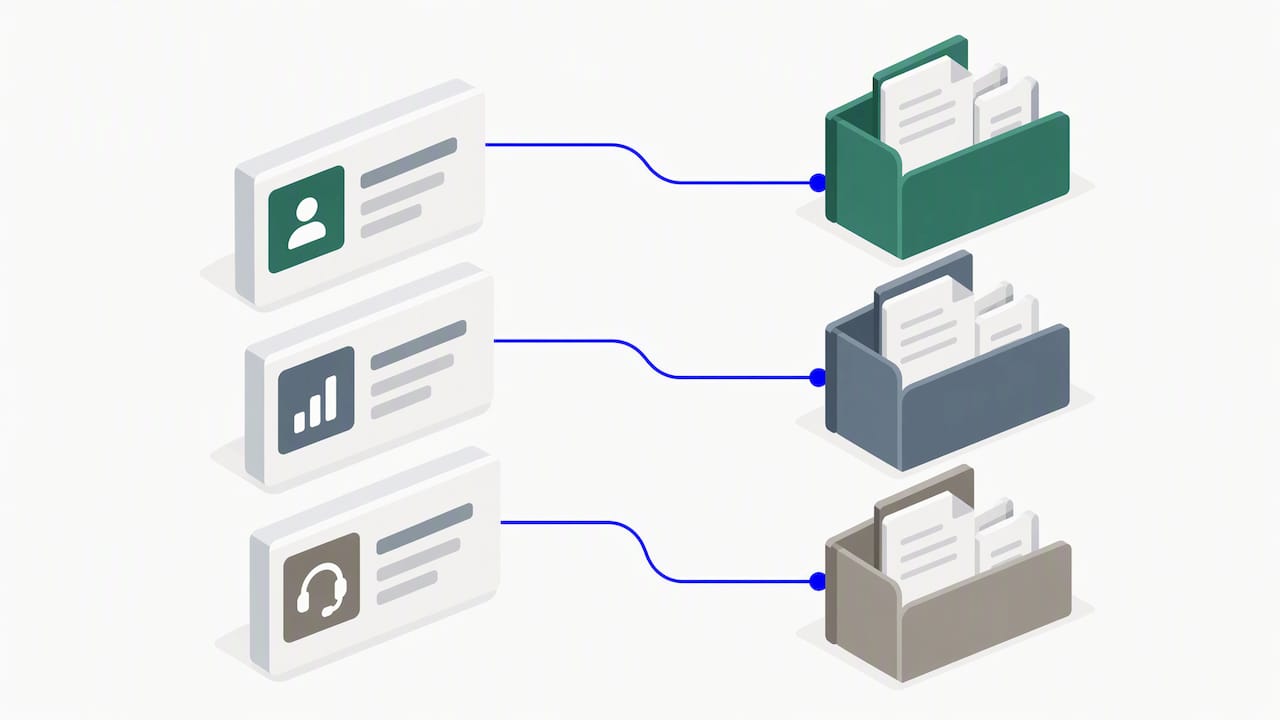
The same page lists Sales, Customer Service, Field Service, Marketing and Project Service Automation as supported customer engagement apps. If your team runs one of these, the native route applies directly.
The practical gain is simple. A sales manager opens an opportunity, clicks Documents, and sees the proposal folder. A service agent opens a case and finds the signed warranty. Nobody searches a shared drive or an inbox.
Under the hood, Dataverse keeps a SharePointDocumentLocation table. It represents the SharePoint libraries or folders that Dynamics 365 manages documents from. That table is user-owned and supports create, retrieve, update, delete, assign and access-sharing operations, which matters when you start automating.
Prerequisites before you start
Check these items first. Most delays come from missing one of them.
- A SharePoint subscription. Microsoft’s Sales integration page states that you need SharePoint Online or a Microsoft 365 subscription that includes it.
- A site collection that the app can reach. Microsoft’s software requirements say a SharePoint site collection must be configured and available, and server-based SharePoint integration must be enabled. The same page lists SharePoint in Microsoft 365, SharePoint 2016 on-premises and SharePoint 2013 SP1 or later on-premises as supported platforms, depending on the integration path.
- The right administrator rights. For on-premises SharePoint with server-based authentication, Microsoft requires Microsoft 365 Global Administrator access, the Power Apps Run SharePoint Integration Wizard privilege, and SharePoint Farm Administrators membership for most SharePoint PowerShell commands.
- A decision on the folder model. Decide which tables get document management, and whether you want one site per environment or several sites by business unit.
If your group has sensitive departments such as legal, HR or treasury, plan separate sites for them now. Splitting a single site later is painful.
How to set up the native integration
The steps below follow Microsoft’s documented path for model-driven apps. Run them in a sandbox first.
- Open the settings. In the Power Platform admin center, go to Manage, Environments, pick the environment, then Settings, Integration, Document management settings, as shown in Microsoft’s entity-level guide.
- Enable server-based integration. Follow the SharePoint Online setup article. Microsoft warns that once server-based integration is on, you cannot go back to the earlier client-based authentication method. Treat this as a one-way decision and get sign-off.
- Choose the entities. Select the tables that need documents, typically Account, Contact, Opportunity, Quote and Case.
- Enter and validate the site URL. The wizard checks that the site is reachable before it proceeds.
- Pick the folder structure. You can let the app create folders based on a parent record, such as an account.
- Test as a normal user. Open a record, go to Documents, upload a file, check it out and check it in.
Sales Professional shortcut
If you run Sales Professional, Microsoft documents a simpler Connect SharePoint flow in Sales Settings. You enter the SharePoint address, validate the site, and let the service create the integration structure. SharePoint is enabled by default for Account, Contact, Lead, Opportunity, Quote, Invoice, Product, Appointment, Task and Phone Call.
A folder structure caveat
Microsoft cautions that, except for Opportunity and Contract, hierarchical folders are not automatically created for tables with more than one many-to-one parent relationship (see the entity-level guide). If you expect a tidy account, then opportunity, then quote tree, test it for every table you enable. Do not assume.
Security: the part that surprises teams
Here is the point that causes the most support tickets. Linking a record to a folder does not copy your Dynamics 365 security model into SharePoint. Microsoft’s setup page says Dynamics 365 and Microsoft 365 users are not automatically allowed access to SharePoint sites. Administrators must assign SharePoint permission levels to users or groups separately.
That creates two failure modes:
- Too closed. A salesperson can see the opportunity but gets “access denied” on its Documents tab.
- Too open. Everyone with site access can browse every customer folder directly in SharePoint, bypassing the record-level rules you built in Dynamics 365.
A workable approach:
- Map Dynamics 365 business units or teams to Microsoft Entra groups.
- Grant those groups SharePoint permissions on the matching site or library, not on individual files.
- Keep the highest-sensitivity records on their own site with a small owner group.
- Review the mapping each quarter, and whenever you reorganize.
For integrations that go beyond the document grid, such as Power Automate flows or Dataverse API calls against the SharePoint Documents table, Microsoft’s Azure app guidance applies. It documents Sites.FullControl.All as an application permission option and says Sites.Selected can give more granular access to individual sites, with administrator consent required. Choose Sites.Selected where you can. The same page covers Dataverse managed identities and federated credentials, and says the earlier access method is removed starting March 2025. If an older flow was built before that, confirm it still works.
For teams that need approvals tied to document access, our Dynamics 365 approval workflow guide for MENA admins explains how to route sign-off, including with an on-premises option.
Storage, versioning and collaboration
SharePoint is where the file lives, so you get its document features. Microsoft’s training material says documents created in the app are stored on SharePoint, where users can use versioning, check-in and check-out, synchronization to desktop and mobile devices, and collaboration with people who do not use Dynamics 365. The Customer Engagement documentation adds that you can view version history and change document properties from the integration.
Three benefits follow for a UAE enterprise:
- External collaboration. A partner or auditor can get access to a folder without a Dynamics 365 license, if your sharing policy allows it.
- Version control. Contract redlines stop living in email attachments.
- Storage placement. Keeping bulky files in SharePoint rather than as Dataverse attachments is a common reason teams adopt the integration. Model the volume you expect, then compare it with your current capacity before you decide.
If you need to produce documents rather than only store them, such as quotes or letters from templates, see our article on document generation in Dynamics 365 without a developer. It pairs well with a SharePoint destination folder.
Customer engagement apps versus Finance and Operations
The steps above apply to Dataverse-based customer engagement apps. Finance and Operations is a different architecture, and the integration approach differs with it.
Microsoft’s implementation guidance says finance and operations apps and customer engagement apps need different approaches. For finance and operations, the options include OData, custom services, data management APIs, recurring integrations, business events, Power Apps, Power BI and IFrames.
For document handling, Microsoft’s cloud and on-premises comparison lists document management as available in both deployments. It lists Electronic Reporting integration with SharePoint as available in the cloud and unavailable on-premises. If you run on-premises Finance and Operations, which some UAE banks and government entities do for residency reasons, that difference matters for e-invoicing and statutory reporting output.
A rule of thumb:
| Scenario | Typical approach |
|---|---|
| Sales, Customer Service or Field Service documents on records | Native server-based SharePoint integration |
| Attachments on Finance and Operations orders and journals | Built-in document management, with SharePoint storage where configured |
| Reports or exports landing in SharePoint | Electronic Reporting (cloud) or an integration pattern such as recurring integrations |
| Cross-system flows touching files | Power Automate or API-based integration with scoped permissions |
If you are choosing between app families, our overview of what Microsoft Dynamics covers and our CRM integration questions for IT leaders help frame the decision.
What UAE organizations should check
The integration is a technical feature, but the documents it holds are often regulated. Three checks belong in the design phase.
Data protection. If your entity sits in the Dubai International Financial Centre, DIFC Law No. 5 of 2020 applies to processing by DIFC controllers or processors. It requires lawful, fair, transparent, purpose-specific, necessary, accurate and secure processing, including protection against unauthorized processing and transfers. It also requires appropriate technical and organizational measures, data protection by design and default, and limiting personal-data access to what is necessary. For SharePoint, that translates into scoped permissions, retention rules and a clear record of where employee and customer files are stored.
Information assurance. The UAE Information Assurance Regulation provides management and technical security controls covering the use, processing, storage and transmission of information. If you are a government entity or work with one, map your SharePoint site design and Dynamics 365 hosting choice against it before go-live. Whether your own entity falls under it is a question for your compliance team.
Connector behavior. If you automate with Power Automate, Microsoft’s SharePoint connector documentation warns that conditional access policies, including multifactor authentication or device compliance rules, may block connector access. It also lists a 90 MB attachment-size limit for list-item attachments. Test flows under your real security policies, not in an open sandbox.
Need on-premises deployment because of sector rules? That is a hosting and architecture question that should be settled before document design. Our Dynamics 365 implementation guide for the UAE covers the planning side.
Use cases that pay off
Sales proposals and contracts
Store every proposal version on the opportunity. Managers review progress without chasing files, and legal can see the final signed copy on the account.
Customer service case files
Agents attach photos, reports and correspondence to a case. Escalation teams open the same folder with the right permissions.
Healthcare administration
Providers keep policy documents, referral letters and consent forms linked to the right record, while clinical data stays in the EHR. See our notes on Dynamics 365 for healthcare for how teams connect administration without replacing core systems.
HR and employee records
HR teams often tie contracts, certificates and onboarding paperwork to a person record. A well-defined document onboarding workflow shows how to organize and audit those files, and the same discipline applies when the folders sit in SharePoint behind a Dynamics 365 record. Restrict these sites to HR only.
Project and construction documentation
Drawings, submittals and variation orders belong with the project record. Version history gives you a defensible trail when a dispute arises.
Our perspective
We see the same pattern across Dynamics 365 projects in the Gulf. The technical setup takes an afternoon. The design decisions take weeks: who owns each site, how groups map to business units, and where regulated files should live.
Our advice is to treat SharePoint as part of your security architecture from day one, not as a storage add-on. Start with a small set of tables, prove the permission model with real users from two departments, then widen. Avoid enabling every table because the wizard allows it. And if approvals, document generation and ERP data all touch the same files, plan them together, because that is where workflows break when each team configures its own piece.
— Tamer Badr
How Singleclic helps
Singleclic implements and integrates Microsoft Dynamics 365 for organizations across Saudi Arabia, the UAE and Egypt. Our Dynamics 365 services cover implementation, customization, integration, support and maintenance, and consultancy. For a SharePoint project, that means:
- Reviewing your site, group and security-role design before you enable the integration.
- Configuring document management for the right tables, and testing folder behavior.
- Connecting approvals, document generation and legacy systems around the same files, including through our Cortex low-code platform, which supports on-premises deployment for banks and government bodies.
- Supporting the environment after go-live.
If you want a second opinion on your design, talk to our team about a Dynamics 365 integration review.
Article details
- Slug: dynamics-365-sharepoint-integration
- Primary keyword: Dynamics 365 SharePoint integration
- Secondary keywords: D365 SharePoint integration, document management in Dynamics 365, server-based SharePoint integration
- Pillar cluster: Dynamics 365 integration, within ERP and CRM automation for MENA enterprises
FAQ
Does Dynamics 365 integrate with SharePoint?
Yes. The native integration links Dynamics 365 records to SharePoint document libraries and folders. Microsoft lists Sales, Customer Service, Field Service, Marketing and Project Service Automation as supported customer engagement apps. Finance and Operations uses a different set of integration options.
Do I need a separate SharePoint license?
You need SharePoint Online or a Microsoft 365 subscription that includes SharePoint Online, according to Microsoft’s Sales documentation. Your Microsoft licensing partner can confirm what your current agreement already covers.
Do Dynamics 365 security roles control SharePoint access?
No. Microsoft states that Dynamics 365 and Microsoft 365 users are not automatically allowed access to SharePoint sites. Administrators assign SharePoint permissions to users or groups separately, so you should map groups to business units and review them regularly.
Can I switch back after enabling server-based integration?
No. Microsoft warns that once server-based SharePoint integration is enabled, an organization cannot revert to the previous client-based authentication method. Test in a sandbox and get approval before you enable it in production.
Is the setup different for Finance and Operations?
Yes. Microsoft describes different integration approaches for finance and operations apps, including OData, data management APIs, recurring integrations, business events and Power Platform tools. Features such as Electronic Reporting integration with SharePoint also differ between cloud and on-premises deployments.
Sources
- Set up customer engagement apps to use SharePoint Online
- Integrate with SharePoint, Dynamics 365 Sales
- SharePoint document management software requirements
- Configure server-based authentication with SharePoint on-premises
- Enable SharePoint document management for specific entities
- Document Location (SharePointDocumentLocation) table
- Configure Azure app for SharePoint access
- Describe Microsoft 365 integrations
- Integrate Dynamics 365 Customer Engagement with SharePoint
- Integrate Dynamics 365 apps with other systems
- Comparison of cloud and on-premises features, Finance and Operations
- DIFC Law No. 5 of 2020
- UAE Information Assurance Regulation
- SharePoint connector documentation