For self-hosted or on-premises Odoo, connect Power BI directly to the PostgreSQL database through a read-only replica. For Odoo Online or Odoo.sh, use a connector module or API extraction into a staging database. Those are the three viable paths for Odoo Power BI integration: direct PostgreSQL, API extraction (JSON-RPC/XML-RPC), and third-party connector modules, each suited to a different hosting reality.
TL;DR:
- Connecting Power BI to a self-hosted Odoo should use a read-only PostgreSQL replica for optimal performance and data security.
- For Odoo Online or Odoo.sh, API extraction with staged data builds or connector modules is the only practical approach due to database inaccessibility.
- Use direct PostgreSQL access for large datasets and complex joins, but limit use to controlled environments with proper security safeguards.
- API extraction works best for small, low-frequency reports, while staging via scheduled exports restores query efficiency for larger or joined datasets.
- A reliable production setup involves isolating reporting from production, modeling with views, scheduling off-peak refreshes, and implementing strict governance and security practices.
Table of Contents
- How do you connect Odoo to Power BI?
- Method A: connecting Power BI directly to Odoo’s PostgreSQL database
- Method B: pulling data through Odoo’s API when the database isn’t reachable
- Method C: using a connector module to skip custom engineering
- Import vs. DirectQuery: which should you use for Odoo data?
- What does a production-ready Odoo to Power BI architecture look like?
- How long does an Odoo Power BI integration project actually take?
- Why Singleclic’s regional experience matters for this integration
- What the integration guides don’t tell you
- Get help building a governed Odoo to Power BI pipeline
- Sources
- FAQ
How do you connect Odoo to Power BI?
The right method depends less on preference and more on where your Odoo instance lives. Self-hosted deployments give you database-level access; cloud-hosted ones do not.
Here’s how the three approaches stack up against the criteria that matter most to an IT team evaluating an Odoo Power BI connector strategy:
- Direct PostgreSQL connection: Fastest performance, full SQL flexibility, but only available if you control the database server (self-hosted or a partner-managed instance with DB access). It bypasses Odoo’s API rate limits entirely and supports complex joins across dozens of tables.
- API extraction (JSON-RPC/XML-RPC): Works on any Odoo instance, including Odoo Online, but is slower and bound by API throttling. Best for smaller datasets or operational reports that don’t need dozens of tables joined in real time.
- Connector modules: Purpose-built middleware that handles authentication, syncing, and publishing automatically. Best when your team wants results in days, not weeks, and is willing to pay a licensing fee for that speed.
Mapping this to hosting models makes the decision almost mechanical. If you run Odoo on your own servers or through a hosting provider that grants database credentials, direct PostgreSQL access, ideally through a replica, is the default choice for odoo reporting tools that need to scan large transaction volumes. If you’re on Odoo Online or Odoo.sh, where the database isn’t exposed, a connector module or API-based extraction into a staging environment becomes the practical answer.
Consider three common scenarios. A finance team building monthly consolidated reports across five legal entities benefits from direct PostgreSQL access with scheduled Import refreshes, since the data doesn’t change minute to minute. A sales operations team that wants live pipeline dashboards on Odoo Online typically reaches for a connector module with DirectQuery support, since it removes the ETL step entirely. A manufacturing floor that needs near-real-time inventory counts usually lands on a hybrid setup: a staging database fed every few minutes by API calls, paired with DirectQuery on the fastest-moving tables.
Complexity and maintenance burden rise in roughly the same order. PostgreSQL access demands the most upfront database work but the least ongoing licensing overhead. Connector modules demand the least engineering time but carry a recurring subscription cost and a dependency on the vendor’s release cycle.
Method A: connecting Power BI directly to Odoo’s PostgreSQL database
Direct PostgreSQL access is the highest-performance route for self-hosted Odoo, and it’s the method most integration specialists recommend when the database is reachable. It skips Odoo’s ORM layer entirely, which means no API rate limits and no JSON parsing overhead. It also means you’re touching production data directly, so the safeguards below aren’t optional.
Follow this sequence:
- Create a dedicated read-only user. Never point Power BI at the
odoosuperuser. Run a SQL script that creates abi_readerrole withSELECTonly, and grant it access table by table rather than schema-wide. - Prefer a replica over production. If your hosting setup supports streaming replication, point Power BI at the replica instead of the primary database. A production connection risks slowing down checkout screens or invoice generation during a heavy refresh.
- Build a BI-friendly view layer. Instead of importing raw tables like
sale_order_line, create SQL views that pre-join order headers, partners, and product categories into a flattened fact table. The Odoo BI View Editor community module can generate a starting set of these views without handwritten SQL. - Connect Power BI Desktop using the native PostgreSQL connector. Under Get Data, select PostgreSQL database, enter the host and port, and authenticate with the
bi_readercredentials, not an admin account. - Choose Import or DirectQuery based on refresh needs. Most finance and executive reporting works fine on Import with a nightly or hourly refresh; only choose DirectQuery for tables where minute-level freshness genuinely matters.
Security has to be built in from step one, not bolted on afterward. Revoke access to sensitive tables such as res_users and payroll-related models at the database role level, not just in Power BI’s row-level security. If Power BI Desktop or the on-premises gateway sits outside your network perimeter, route the connection through a VPN or restrict inbound PostgreSQL traffic to the gateway’s IP address with firewall rules, rather than exposing port 5432 publicly.
On performance, the views you build should already resemble a star schema, with clearly separated fact tables (orders, invoices, stock moves) and dimension tables (partners, products, companies). This keeps Power BI’s DAX engine efficient and makes incremental refresh possible in the first place, since incremental refresh needs a reliable date column to detect changed rows.
Pro Tip: Use Odoo’s built-in write_date column as your incremental refresh boundary. Every model in Odoo updates this field automatically on any change, which means you get a free, reliable “last modified” marker without writing custom triggers.
Method B: pulling data through Odoo’s API when the database isn’t reachable
When PostgreSQL access isn’t an option, typically because you’re on Odoo Online, API extraction through JSON-RPC or XML-RPC becomes the fallback. It works against any Odoo instance, including ones you don’t control the infrastructure for, but it comes with real constraints on speed and volume.
The core building block is Odoo’s search_read method, which lets you query a model with domain filters and return only the fields you need. In Power BI, this typically means writing a custom Power Query (M) function that authenticates against the Odoo API, sends a search_read request, and parses the JSON response into a table. A few practical patterns make this workable:
- Handle pagination explicitly. Odoo’s API returns records in batches; your function needs a loop that increments the offset parameter until the returned record count drops below the batch size.
- Respect rate limits. Space out requests or batch multiple models into fewer, larger calls rather than firing dozens of small ones in quick succession.
- Authenticate with an API key, not a password. Odoo supports API key authentication for external integrations, which avoids storing a live user password inside a Power Query script.
- Filter server-side, not client-side. Pass date range and status filters directly in the
search_readdomain rather than pulling everything and filtering in Power BI, which wastes bandwidth and refresh time.
API extraction is genuinely fine for lightweight, low-volume use cases: a weekly sales summary, a small HR headcount report, or a single-department dashboard pulling a few thousand records. It starts to strain once you’re joining several large models, sales orders, order lines, invoices, and stock moves, in a single refresh cycle, because every join has to happen in Power Query rather than in the database.
That’s where staging pays off. A common pattern is to configure an Odoo scheduled action (cron job) that exports relevant models to CSV or pushes them via API into an Azure SQL database on a set schedule, say every 15 minutes. Power BI then connects to that staging database instead of Odoo directly, which restores query folding and lets the DAX engine push filtering work back to SQL Server rather than doing it in memory. Singleclic’s own Odoo API integration architectures walk through webhook and JSON-RPC patterns that fit neatly into this staging approach for teams already comfortable with Odoo’s automation tools.
Method C: using a connector module to skip custom engineering
Connector modules exist precisely because building and maintaining a custom PostgreSQL view layer or API extraction pipeline takes real engineering time. A connector abstracts that work into a configuration screen, and for many mid-sized teams, that trade-off is worth the licensing cost.
Before committing to one, check it against a specific feature checklist, since not all power bi odoo connector products are built to the same standard:
- Azure AD or Service Principal authentication. Connectors that support Azure Service Principal flows reduce the risk of hardcoded credentials and make automated, unattended refreshes safer to schedule.
- Incremental sync, not full reloads. A connector that re-pulls every record on every refresh will slow down as your Odoo database grows; one that tracks
write_dateand syncs only changes stays fast indefinitely. - Model and field selection. You want the ability to choose exactly which Odoo models and fields sync, rather than importing entire tables you’ll never use in a report.
- Direct publishing to Power BI Service. The better connectors push datasets straight into Power BI Service, skipping the manual export-import cycle entirely.
- Logging and retry handling. Ask any vendor how failed syncs are logged and retried. Silent failures on a finance dashboard erode trust fast.
- DirectQuery support. Some connectors, including CData’s, support DirectQuery for live reporting, which matters if your use case needs near-real-time numbers without a separate ETL layer.
Connectors make the most sense when deployment speed matters more than long-term licensing cost, a small IT team standing up its first executive dashboard in a matter of days, for instance, rather than months. The Odoo App Store itself lists community and commercial connector modules that offer one-click installations with scheduled publishing and dashboard embedding built in.
The trade-off is recurring cost and a dependency on the vendor’s release cadence when Odoo or Power BI update their APIs. On the security side, insist that any connector you evaluate respects Odoo’s own record rules, meaning a salesperson who can only see their own deals in Odoo shouldn’t suddenly see the whole pipeline once the same data lands in a Power BI dataset. A connector that flattens record-level permissions on the way out is a compliance problem waiting to surface.

Import vs. DirectQuery: which should you use for Odoo data?
Import mode should be your default for Odoo reporting; reserve DirectQuery for the small number of tables where minute-level freshness is a genuine business requirement, not just a nice-to-have.
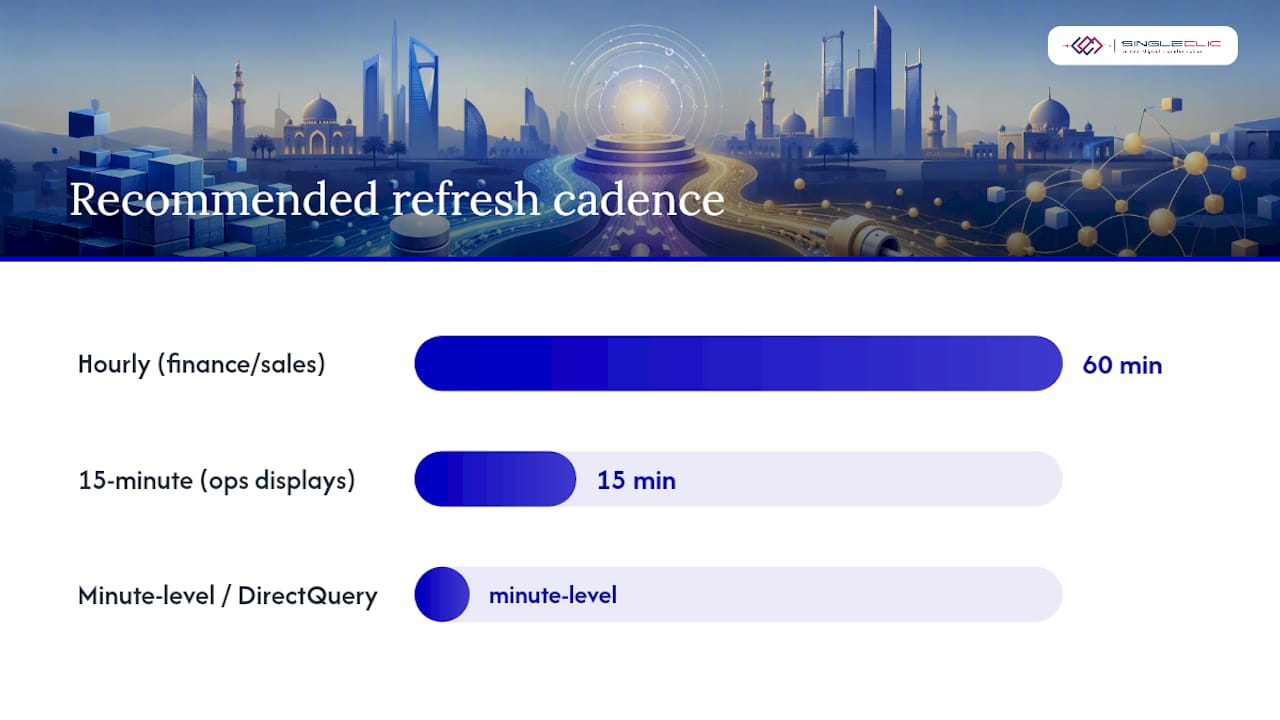
Import mode compresses and caches Odoo data inside Power BI’s in-memory engine, which makes dashboards fast to interact with regardless of how large the underlying dataset is. The trade-off is that data is only as fresh as your last scheduled refresh. DirectQuery, by contrast, queries the source live on every click and filter change, which keeps numbers current but pushes performance risk onto your Odoo database or staging layer. A hybrid composite model, Import for historical fact tables and DirectQuery for a handful of live operational tables like open orders or current stock, is increasingly the practical middle ground for teams running large Odoo datasets.
Whichever mode you pick, configure it deliberately:
- Set up incremental refresh with RangeStart and RangeEnd parameters. These two date/time parameters tell Power BI which slice of data to refresh and which historical slices to leave untouched, dramatically cutting refresh time on large tables.
- Anchor incremental refresh on
write_date. Because incremental refresh works by fetching only records changed since the last run, you need a dependable “last modified” timestamp, and Odoo’swrite_datefield fills that role on nearly every model. - Match refresh cadence to business need, not technical maximums. Hourly refreshes are plenty for most finance and sales reporting; reserve 15-minute or DirectQuery-level freshness for operational floor displays.
- Install the on-premises data gateway close to the data source. If your PostgreSQL database or staging SQL server sits on a private network, the gateway needs to run on a machine inside that same network, not in the cloud, with outbound access to Power BI Service.
- Authenticate cloud refreshes through Azure AD. Scheduled refreshes from Power BI Service need a service account or Service Principal registered in Azure AD, not a personal login that might get disabled.
- Build row-level security around
company_id. Multi-company Odoo setups store acompany_idfield on nearly every transactional table; define an RLS role in Power BI that filters rows to match each user’s assigned company, mirroring Odoo’s own multi-company record rules.
Pro Tip: Test your RLS roles by impersonating a single-company user inside Power BI Desktop before publishing. It’s a five-minute check that catches the most common multi-company reporting embarrassment: a regional manager who can suddenly see every other region’s revenue.
What does a production-ready Odoo to Power BI architecture look like?
A production-ready setup never lets Power BI touch the live transactional database directly. Every enterprise implementation worth trusting routes through a replica or staging layer first, because a heavy DAX refresh competing with real-time order processing is how dashboards start causing outages instead of preventing them.
Three architectural habits separate a fragile setup from a durable one:
- Isolate reporting from production with a replica or staging database. A dedicated reporting replica lets you build BI-optimized views without any risk of a runaway query slowing down checkout, invoicing, or inventory updates on the live system.
- Model in views, not raw tables. Views let you pre-join, rename, and clean fields once at the database layer instead of repeating that logic in every Power BI report, which also makes it far easier to hand off maintenance to a new analyst later.
- Schedule refreshes around business rhythms, not convenience. Running a full refresh during month-end close, when Odoo itself is under the heaviest load, is a common and avoidable mistake. Stagger refresh windows to off-peak hours where possible.
- Build in retry logic for failed refreshes. Power BI Service supports configurable retry attempts on failure; pair that with an email alert to whoever owns the dataset so failures get caught within hours, not discovered a week later when a report looks stale.
- Treat governance as part of the architecture, not an afterthought. Endorse critical datasets (Promoted or Certified) inside Power BI Service so report builders know which sources are trustworthy, apply sensitivity labels to anything touching payroll or margin data, and assign clear workspace ownership so refresh failures have an obvious owner.
- Document the pipeline like production code. A short runbook covering what to check when a refresh fails, whom to contact, and how the incremental refresh window is defined saves hours during an actual outage.
Executive-facing dashboards built on this kind of architecture tend to hold up far better under scrutiny during board reviews and audits. Singleclic’s guide on designing executive dashboards covers how to structure that layer once the data pipeline itself is solid, and the broader pattern of combining Odoo with Power BI and Dynamics 365 for near-real-time visibility follows the same replica-first principle.
How long does an Odoo Power BI integration project actually take?
Most mid-sized integrations run two to four weeks from kickoff to handover, depending on which method you choose and how many models are in scope. Break the work into three phases with clear owners:
- Pre-flight (days 1 to 3). Inventory which Odoo models and fields the business actually needs, pick the integration method based on hosting model, provision the
bi_readeruser or replica, and confirm stakeholders for finance, sales, and operations reporting. - Implementation (days 4 to 12). Build the BI view layer or Power Query functions, install and configure the on-premises gateway if needed, register the Azure AD service account, and implement incremental refresh policies plus row-level security for multi-company data.
- Validation and handover (days 13 to 15). Reconcile at least three key reports line-by-line against native Odoo reports catching modeling errors, document the data lineage from source table to dashboard visual, and train the report owners who will maintain it going forward.
Skipping the validation phase is the most common shortcut that comes back to bite teams later, usually when a director spots a number in Power BI that doesn’t match Odoo and trust in the whole dashboard erodes overnight.
Why Singleclic’s regional experience matters for this integration
Singleclic has spent over a decade delivering ERP, CRM, and data integration projects across Saudi Arabia, the UAE, and Egypt, including as an Odoo Silver Partner working alongside Microsoft Dynamics 365 and IBM BAW implementations. That combination matters for Odoo-to-Power BI projects specifically, because most regional enterprises aren’t running a single clean Odoo instance; they’re running Odoo alongside legacy systems, banking integrations, or government compliance requirements that demand on-premises data handling.
A Singleclic engagement typically starts with a short discovery phase to map which Odoo models and hosting setup you’re working with, followed by secure environment setup (replica or staging, gateway placement, Azure AD registration), a staged rollout that validates numbers against native Odoo reports before wider release, and structured knowledge transfer so your internal team can maintain refreshes and RLS rules independently. For organizations that need on-premises deployment for regulatory reasons, Singleclic’s Cortex low-code platform connects those same Odoo data flows into broader approval workflows and legacy system integrations without exposing sensitive data outside the network.
What the integration guides don’t tell you
Most Odoo-to-Power BI tutorials treat the connection method as the hard part. It isn’t. The harder problem is what happens six months after launch, when nobody remembers why a particular view excludes canceled orders, or why the RLS role for the Egypt office stopped working after a company restructuring.
The conventional advice, pick PostgreSQL for speed, pick a connector for convenience, undersells how much of this work is really about discipline: naming conventions on views, a runbook for refresh failures, a habit of reconciling numbers against Odoo before trusting a new report. Teams that skip that discipline end up with a dashboard that looks impressive in a demo and falls apart the first time someone questions a number in a board meeting.
If there’s one priority to get right first, it’s the replica or staging layer, not the visualization. A beautiful dashboard built on a fragile, production-touching connection is a liability with good graphics. Get the data layer boring and reliable first. The reporting can be as ambitious as you want once that foundation holds.
— Tamer Badr
Get help building a governed Odoo to Power BI pipeline
Singleclic is the practical alternative to piecing together an Odoo Power BI integration on your own: instead of trial-and-error with Power Query scripts or a connector subscription you’re not sure fits your data volume, you get an engineering team that has already built these pipelines across regulated industries in the region.
Whether your Odoo instance needs a direct PostgreSQL replica, a secure API extraction pipeline, or a connector evaluated against enterprise security requirements, Singleclic’s Business Process Automation and Data Analytics teams handle the discovery, build, and handover so your reports are trustworthy from day one, not just fast to launch. For organizations that also need those Odoo data flows feeding into broader approval processes or legacy systems, Cortex extends the same integration into a full low-code workflow layer. Reach out through Singleclic’s services page to request an integration assessment and get a scoped plan for your specific hosting setup and reporting needs.
Sources
- Connect Odoo ERP to Power BI — CData
- The Complete Guide to Power BI + Odoo Integration | ECOSIRE
- Power BI Connector for Odoo — KSROlabs
FAQ
Is Odoo built on Python?
Yes, Odoo’s backend framework is written in Python, with PostgreSQL as its database layer. That combination is exactly why direct PostgreSQL access works so well as an integration method: you’re querying a standard relational database, not a proprietary format.
What does “integration” mean in Power BI, and how does it work?
Integration in Power BI refers to connecting an external data source, a database, an API, or a connector, so Power BI can import or query that data for reports and dashboards. For Odoo specifically, that connection happens through one of three routes: direct PostgreSQL access, JSON-RPC/XML-RPC API calls, or a dedicated power bi odoo connector module.
Is Odoo a CRM or an ERP?
Odoo is a full ERP suite that includes a built-in CRM module alongside accounting, inventory, manufacturing, and HR applications. That breadth is part of why odoo business intelligence solutions need careful data modeling: a single Power BI report might need to join sales, inventory, and accounting tables that all live in the same database.
What third-party apps are available for Odoo?
The Odoo App Store hosts thousands of third-party modules, ranging from industry-specific extensions to Power BI connector modules that handle syncing and dashboard publishing. Vendors outside the App Store, including CData and KSROlabs, also offer standalone connectors with enterprise authentication support.
Should I use Import or DirectQuery to connect Power BI to Odoo?
Use Import mode for most historical and financial reporting, since it’s faster to interact with and puts no ongoing load on your Odoo database. Reserve DirectQuery for the specific tables where near-real-time freshness is a genuine requirement, and consider a hybrid composite model if you need both.
Recommended
- Power BI for Executive Decision-Making: Turning Data into Action
- Ship stable Odoo API integrations: 3 architectures, JSON RPC & webhooks
- Real-Time Dashboards, Real-World Decisions: Accelerate Insight-to-Action with Power BI, Dynamics 365, and Odoo
- Top ERP Integration Tips to Streamline MENA Operations