Odoo project accounting connects analytic accounts, timesheets, vendor bills, purchase orders, and customer invoices into a single profitability view for every project. The immediate step is to enable the Project and Analytic Accounting modules, then create one analytic account per project so every hour and every cost lands in the right place. From there, Odoo pulls timesheets, purchase costs, and billing into a live margin report you can check anytime.
TL;DR:
- Proper setup requires configuring analytic accounts on each project, mapping purchase and timesheet costs, and ensuring posting rules are correctly followed.
- The profitability report depends on posted accounting entries with correct analytic distributions; unlinked bills or timesheets lead to inaccurate results.
- Multi-currency projects demand a clear policy on conversion timing to prevent discrepancies between margins and general ledger figures.
- Regular reconciliation between the profitability report and the general ledger helps identify inconsistencies caused by permission gaps, untagged purchase orders, or draft entries.
- Complex or multi-entity projects often need expert configuration to prevent process drift that can cause long-term inaccuracies in margin tracking.
Table of Contents
- How Odoo implements project and analytic accounting
- Setting up Odoo project accounting step by step
- How do you read the project profitability dashboard?
- Accounting entries and cost sources that affect project profitability
- Common pitfalls and best practices for Odoo project accounting
- Singleclic’s perspective on Odoo project accounting implementations
- What the standard advice on Odoo project accounting misses
- Get Odoo project accounting set up right the first time
- Sources
- FAQ
How Odoo implements project and analytic accounting
Every project in Odoo runs on the project.project model, extended by the project_account module to pull financial data into the project itself. That extension is what turns a task list into a profitability report.
The key distinction finance teams need to grasp: analytic accounts are not the same as general ledger accounts. GL accounts tell you what type of expense or revenue occurred (salaries, subcontractor fees, consulting revenue). Analytic accounts tell you which project, client, or cost center that transaction belongs to. Odoo’s Project documentation confirms that the app schedules tasks and tracks each project’s profitability through built in reports, and analytic lines are the mechanism that makes it possible.
Timesheets generate analytic lines automatically the moment an employee logs hours against a task. Customer invoices tied to a project also post analytic lines when confirmed. Purchase orders and vendor bills follow a slightly different path: their cost lines carry an analytic distribution that Odoo’s project_account module scans and rolls into a section labeled “other purchase costs” on the profitability report, as the module’s own source code shows.
Setting up Odoo project accounting step by step
Getting from a blank database to a working profitability dashboard takes a specific sequence. Skip a step and the numbers will look wrong for reasons that are hard to trace later.
- Install the right apps. You need Project, Timesheets, Accounting (or Invoicing), and Analytic Accounting active. In many versions, Analytic Accounting activates automatically once Accounting and Project are both installed.
- Enable Odoo project accounting on each project. Open the project’s settings and turn on the accounting/profitability option. This creates an analytic account tied specifically to that project.
- Map tasks and timesheet products. Assign the service product used for time billing so hours logged translate into revenue lines, not just cost.
- Set timesheet posting rules. Confirm that logged hours automatically generate analytic lines rather than sitting as unposted entries. This is the single most common source of an empty profitability tab.
- Configure invoicing policy. Decide whether the project bills on timesheets, milestones, or fixed price, since this determines what shows up as “to invoice.”
- Tag purchase orders and vendor bills with the analytic account. Every subcontractor cost or material purchase needs an
analytic_distributionentry pointing to the project, or it never reaches the report, according to guidance on the Odoo forum. - Grant the right permissions. Finance users need
account.group_account_invoiceoraccount.group_account_readonlyaccess to see the profitability action links, not just Project app rights. - Confirm currency settings if the project bills in a currency different from your company’s base currency.
Pro Tip: Run a test project with one timesheet entry, one vendor bill, and one invoice before rolling this out company-wide. If all three show up correctly in the profitability tab within a few minutes, your configuration is sound. If one is missing, you have found your gap before it costs you a quarter of bad reporting.
How do you read the project profitability dashboard?
The profitability view on each project splits into two halves: revenues and costs, each broken down by source. On the revenue side you will see billed amounts (already invoiced) versus to-bill or to-invoice amounts (earned but not yet billed). On the cost side, timesheet costs sit separately from “other purchase costs,” which covers vendor bills and purchase order lines carrying that project’s analytic account.
Clicking into any line opens a drilldown rather than a static number. Odoo’s project_account module builds action links that open either an analytic line pivot and graph view or the actual vendor bill and invoice records behind the total, per the module’s action definitions. That means a finance manager questioning a margin figure can trace it back to the exact bill in two clicks, not a support ticket.
Filter the view by company, project stage, or tags to compare performance across a portfolio rather than one project at a time. A Cybrosys walkthrough of the analytic accounting screens shows how these filters and pivot tables surface trends that a single project view hides.
Three numbers deserve a recurring spot on your monthly review:
- Gross margin by project, calculated as billed revenue minus total recorded costs.
- Utilization rate, the share of logged hours that are billable versus internal or non chargeable.
- Billed versus recorded hours, which flags scope creep before it erodes margin.
Accounting entries and cost sources that affect project profitability
Every cost or revenue figure on a project profitability report traces back to an account.move.line carrying an analytic distribution. That distribution field is what links a specific ledger line, a vendor bill row, an expense line, to a specific project’s analytic account.
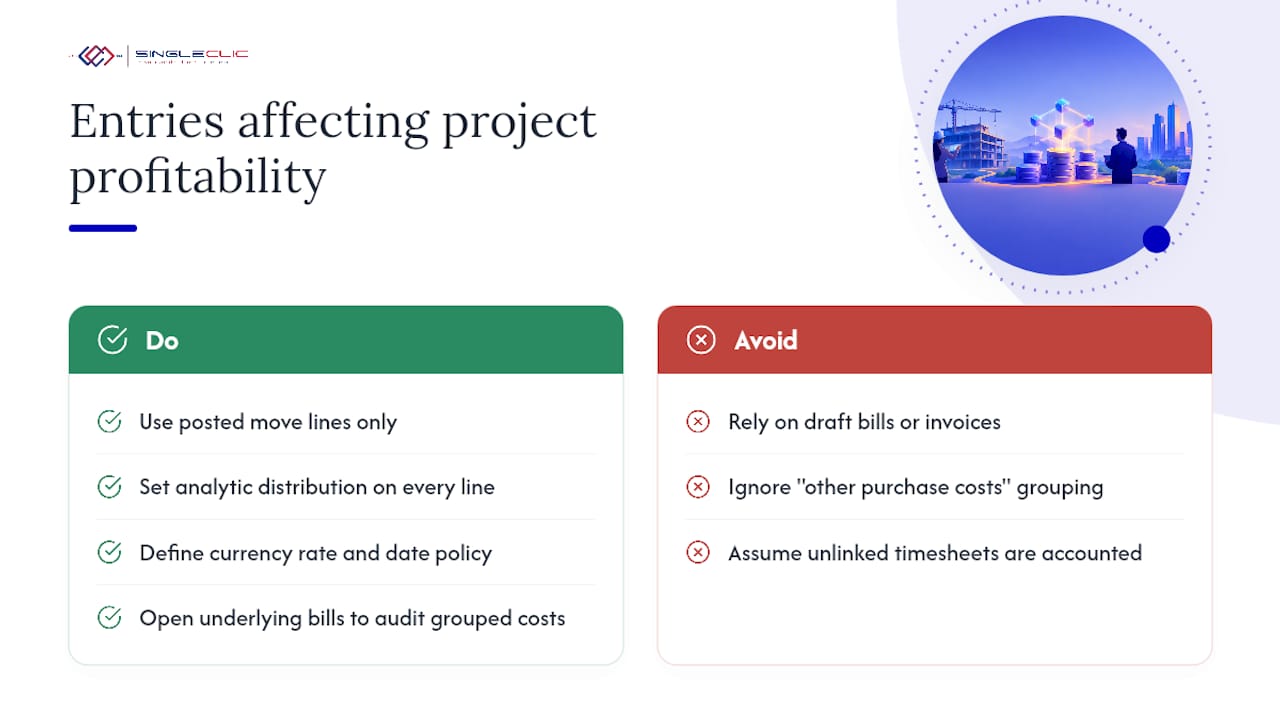
Odoo distinguishes between posted and draft move lines when summing totals, and only posted entries typically count toward the final numbers you should trust for decision making. Draft bills or unconfirmed invoices can distort a snapshot if you check the report mid-cycle. Currency conversion happens at the point of aggregation too: amounts in a project’s own currency get converted to company currency using _convert calls before totals are summed, which is why multi-currency projects need a defined policy on which rate and which date to use for reporting consistency.
Costs without a clean product or vendor breakdown get grouped under “other purchase costs” rather than itemized individually on the summary screen. That is by design, meant to keep the top-level view readable, but it means finance teams need to open the underlying bills to audit specifics. Analytic lines that never link to a move line, timesheets not yet invoiced, for instance, still show up in the to-bill or to-invoice columns even though no accounting entry exists for them yet.
Common pitfalls and best practices for Odoo project accounting
Most profitability reporting problems in Odoo trace back to a handful of repeatable mistakes rather than a software limitation.
- Missing analytic accounts on purchase orders. A subcontractor invoice with no analytic distribution simply disappears from that project’s cost total, quietly understating true spend.
- Timesheets that never post. Draft or unconfirmed timesheet entries do not generate the analytic lines the report depends on.
- Permission gaps. Project managers without accounting read access see a profitability tab, but not the drilldown links that make it useful.
- Currency mismatch left unresolved. Projects invoiced in a foreign currency without a clear conversion policy produce margin figures that shift depending on when you check them.
Build a monthly reconciliation habit: compare the profitability tab total against the general ledger for that analytic account, and investigate any variance immediately rather than at quarter close.
Pro Tip: *Before go-live, run one project through a full cycle, quote, purchase order, vendor bill, timesheet, invoice, and confirm every line appears where you expect.
Singleclic’s perspective on Odoo project accounting implementations
Odoo project accounting works well out of the box for straightforward service or project businesses. It gets harder once you add multi-entity operations, complex subcontractor chains, or a requirement to integrate with an external payroll or procurement system. That is usually the point where a partner earns its fee.
Singleclic works with organizations across construction, real estate, and government sectors in the region on exactly this kind of configuration: mapping analytic distribution rules correctly, connecting Odoo project accounting to broader ERP and CRM data through Odoo API integrations, and building custom reporting where the standard dashboard is not enough. A typical engagement covers scoping the cost structure, configuring analytic accounts and permissions, testing with real transactions, and training the finance team before handover.
What the standard advice on Odoo project accounting misses
Most guides treat Odoo project accounting as a checklist: install modules, create analytic accounts, done. That framing undersells the real risk, which is not configuration complexity but configuration drift. A project set up correctly in January can quietly lose accuracy by June if a new procurement clerk stops tagging purchase orders with the right analytic account, or if a permissions change locks finance out of the drilldown views they rely on.
The conventional advice also underweights currency policy. Teams treat multi-currency handling as a technical footnote, when in practice it is one of the more common sources of a margin number that will not reconcile against the general ledger.
My honest read: the modules themselves are solid, and the module source shows genuinely sensible logic for aggregating costs and revenues. What determines whether the report stays trustworthy is process discipline, monthly reconciliation, permission audits, and a clear owner for analytic account governance. Prioritize that before you worry about custom dashboards or extra KPIs.
— Tamer Badr
Get Odoo project accounting set up right the first time
Getting analytic accounts, timesheets, and vendor bills to line up correctly on the first attempt saves months of chasing bad margin numbers later, which is exactly where Singleclic’s Odoo implementation work earns its keep. Singleclic configures the analytic accounting layer, connects it to your existing procurement and payroll systems, and, where processes span multiple platforms, layers in Cortex to route approvals and data between Odoo and legacy systems without custom code.
A typical engagement includes scoping your cost structure, building the analytic account map, testing with real transactions, and training your finance team before go-live. If your project reporting is not showing you real margins yet, request a consultation with Singleclic’s services team and get a working profitability dashboard instead of a spreadsheet workaround.
Sources
For the technical detail behind this guide, review the Odoo Project documentation for user-facing behavior and the project_account module source on GitHub for exact profitability calculation logic.
FAQ
What modules do I need for Odoo project accounting?
You need Project, Timesheets, and Accounting (or Invoicing) installed, which together activate Analytic Accounting. The project_account extension then links these into the profitability report shown on the Odoo Project documentation.
Why is a vendor bill missing from my project’s profitability report?
The bill’s line almost certainly lacks an analytic distribution pointing to that project’s analytic account. Odoo’s profitability calculation only picks up costs carrying that distribution field, as shown in the module’s source code.
How does Odoo handle multi-currency projects?
Odoo converts amounts to company currency at the point totals are summed, using the currency conversion rate available at that moment. Set a clear policy on when and how conversions happen so margin figures stay consistent across reporting periods.
What is the difference between analytic accounts and GL accounts in Odoo?
GL accounts classify a transaction by type, such as salary expense or consulting revenue. Analytic accounts classify the same transaction by which project, client, or cost center it belongs to, letting you cut profitability by project regardless of GL structure.
When should I bring in an Odoo partner instead of configuring this myself?
Bring in a partner when you have multi-entity operations, complex subcontractor cost flows, or need integrations with external payroll or procurement systems. Singleclic handles this scope of work directly, including analytic account governance and Odoo integration architecture for organizations that need it connected to other systems.
Recommended
- ERP Implementation Steps That Deliver: A Field-Tested Playbook with Dynamics 365 and Odoo
- ERP Implementation Cost: A Practical Guide to TCO, ROI, and Budgeting with Dynamics 365 and Odoo
- Considering SAP accounting software? Compare it with Dynamics 365 and Odoo to accelerate finance transformation
- The Executive ERP Implementation Checklist: 12 Phases to De‑Risk Dynamics 365 and Odoo Deployments