Bank reconciliation in Dynamics 365 compares the bank ledger with the statement your bank sends, matches line by line, and posts what is left over. The method depends on the product. Dynamics 365 Finance uses advanced bank reconciliation with imported statement files and rule-based matching. Business Central uses a reconciliation page and a payment reconciliation journal. In both, the speed you get depends on three things: the statement format your UAE bank delivers, the matching rules you configure, and how cleanly exceptions are routed to people. Singleclic implements and integrates Dynamics 365 for organizations in the UAE and Saudi Arabia, and this guide covers what a CFO, CIO or finance lead needs to decide before the first statement is imported.
TL;DR
- Finance and Business Central reconcile differently: Finance imports statement files and runs rule sets, while Business Central matches statement lines to bank ledger entries on one page.
- Finance supports ISO 20022, MT940 and BAI2 statement formats out of the box, so confirm which one each of your banks delivers.
- Automation comes from matching rules (Finance) and payment application rules (Business Central). Rules handle the bulk, and people handle the exceptions.
- Bank fees, interest and penny differences need a defined posting route, or they stall every month-end close.
- Direct bank connectivity and approval workflows around reconciliation are integration work, and that is where a partner pays for itself.
Table of Contents
- Which Dynamics 365 product are you reconciling in?
- How reconciliation works in Dynamics 365 Finance
- Matching rules: where the automation comes from
- How reconciliation works in Business Central
- Resolving unmatched items, fees and differences
- Where Copilot fits
- Cash management and bank connectivity in the UAE
- Use cases
- A practical rollout sequence
- How Singleclic helps
- Our perspective
- FAQ
- Sources
Which Dynamics 365 product are you reconciling in?
The search term covers two products with different mechanics, so settle this first.
| Dynamics 365 Finance | Dynamics 365 Business Central | |
|---|---|---|
| Typical user | Large or multi-entity groups | Mid-sized companies and subsidiaries |
| Starting point | Bank statements page, Import statement | Bank Account Reconciliation page or Payment Reconciliation Journal |
| Matching | Rule sets run in sequence, plus manual matching in a worksheet | Match Automatically, Match Manually, or Reconcile with Copilot (preview) |
| Statement formats | ISO 20022, MT940, BAI2 out of the box | Import format chosen per bank account, with CSV layouts you define |
If you are still deciding between them, our guides to Dynamics 365 Business Central and Dynamics 365 Finance set out where each fits.
How reconciliation works in Dynamics 365 Finance
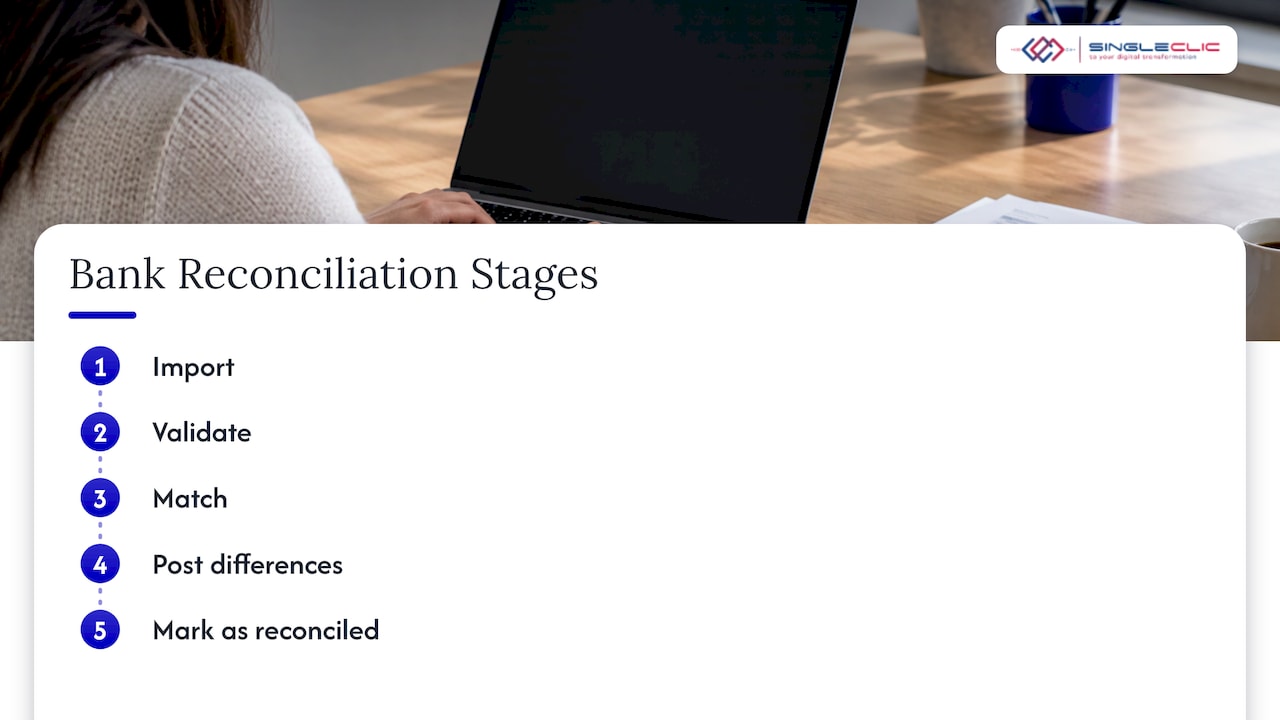
Finance uses what Microsoft calls advanced bank reconciliation. The flow has five stages: import, validate, match, post differences, and mark as reconciled.
Import the statement
Electronic statements come in through the Import statement action on the Bank statements page. Finance identifies the bank account from a combination of bank name, account number, routing number, SWIFT code and IBAN. A single file can hold statements for several accounts across different legal entities, and a zip file can bundle several files into one import. For a UAE group with accounts in several entities, that removes repeated uploads.
The same page offers a Reconcile after import option. It validates the statement, creates the reconciliation and its worksheet, and runs the default matching rule set automatically.
Finance supports three formats out of the box: ISO 20022 (CAMT.053), MT940 and BAI2. Microsoft deprecated the legacy import setup in September 2022 in favor of Electronic reporting, so any import configuration should be built on that framework.
What these mean in plain terms:
- CAMT.053 is the XML statement message of the ISO 20022 standard. It carries richer remittance data than older formats.
- MT940 is the long-standing SWIFT statement message.
- BAI2 is a text format defined by the Bank Administration Institute, mostly used by US banks.
For UAE companies the practical question is which of the first two each of your banks provides, and whether the file includes the references your customers put on payments. We cover that migration in ISO 20022 vs SWIFT MT: what changes for UAE businesses.
Validate before you match
A statement must pass validation before reconciliation. The checks include:
- The statement belongs to the bank account and the currency matches.
- The opening balance equals the previous statement’s closing balance.
- Statement dates do not overlap other statements, and line dates fall inside the period.
- The opening balance plus the line amounts equals the ending balance.
When validation fails, it usually points to a missing day, a duplicate import or a truncated file. Fixing it at this stage is far cheaper than discovering it after matching.
Match transactions
With Modern bank reconciliation turned off, Finance gives you three actions: match to posted bank transactions, match reversal statement transactions, or mark a transaction as New so it can be posted later. Matches can be one-to-one, many-to-one or many-to-many, and each must respect the date-difference and transaction-type limits set on the Cash and bank management parameters page.
Those parameters decide how much of your volume matches without touching it. Set the date tolerance too tight and every payment that clears a day late becomes an exception. Set it too loose and you risk pairing the wrong items.
Close the reconciliation
When you mark a reconciliation as reconciled, unmatched transactions move to the next reconciliation worksheet, and the reconciliation cannot be undone or edited. Treat that as a control: assign who may do it and review the worksheet before they do.
Matching rules: where the automation comes from
Matching rules are what make the process faster than a spreadsheet. A rule filters statement lines and bank transaction lines, and by default matches the first bank document that meets its criteria. Rule sets run in sequence. You can set one as the account default, run it automatically on import, or run it on demand from the worksheet.
A sensible rule design follows a ladder from strict to loose:
- Exact match: same amount, same reference, same date.
- Reference match: same amount and reference, date within a few days.
- Amount and date match: same amount, date within the tolerance, for payments with no usable reference.
- Grouped match: many ledger entries against one lump-sum statement line, such as a customer paying several invoices in one transfer.
Put the strictest rule first, because the first qualifying document wins. Review the unmatched list monthly and add a rule when you see the same pattern three times.
Microsoft has also been improving the worksheet. Its advanced bank reconciliation enhancements tech talk describes an easier worksheet for transactions that could not be matched automatically, including reversing posted payments and correcting company transaction errors without a separate journal entry.
How reconciliation works in Business Central
Business Central compares entries in the bank accounts you set up with the transactions at your bank. Three matching methods are available: Match Automatically, Reconcile with Copilot (AI-powered, in preview), and Match Manually, where you link statement lines to one or more bank account ledger entries.
Setup starts on the Bank Account Card. On the Transfer FastTab you choose the Bank Statement Import Format. For CSV files, you define the file layout in the import setup and assign it to the account.
You can post the reconciliation when the Total Balance in the Bank Statement Lines pane equals the Balance To Reconcile plus the Balance Last Statement in the Bank Account Ledger Entries pane. Lines with a Difference value stay on the page until you resolve them.
Applying payments to customers and vendors
For receipts and payments, the Payment Reconciliation Journal applies bank payments to open customer or vendor ledger entries by matching the payment text against entry information. Prioritized rules on the Payment Application Rules page control how. When every payment is applied, the bank account is reconciled automatically.
If you run Business Central in the UAE, our Business Central implementation guide for UAE covers the wider rollout.
Resolving unmatched items, fees and differences
Most of the effort in any month-end sits in the exceptions. The routes below are documented for Business Central, and Finance has equivalents.
- In the ledger, not on the statement: create the missing bank transaction, or reimport the statement if the file was incomplete.
- On the statement, not in the ledger: create and post the entry, then match it.
- Near-matches: review them, match manually, and correct the mismatch if needed.
- Bank fees and interest: use Transfer to General Journal, post the journal lines, then match the statement line to the new ledger entry.
In Finance, penny differences can be matched when they fall within the Allowed penny difference tolerance on the bank account. The correction is posted to the main account defined on the bank transaction type when the reconciliation is marked reconciled. Corrections are not supported for Check and Deposit document types.
Decide in advance which main account takes rounding and which takes bank charges, and who approves a write-off above a threshold. Writing this down is a finance policy decision, not a system setting.
Where Copilot fits
In Business Central, Copilot inspects the transactions that automatch left unmatched and looks for further matches, for example one lump-sum payment against several ledger entries. For what is still unmatched, it can suggest G/L accounts. It is a preview feature, so treat it as an assistant to the rule set, not a substitute: the rules clear the predictable volume, and the AI works the tail. Role-by-role governance for these assistants is in our Copilot for Dynamics 365 playbook.
Cash management and bank connectivity in the UAE
Reconciliation quality is capped by what the bank delivers. Many teams still download files from a portal and upload them by hand. The alternative is a scheduled integration that brings statements in automatically, in the format and with the references your matching rules expect.
The design choice is between file-based exchange through Electronic reporting and API-based connectivity. We compare them for UAE banks in Dynamics 365 banking integration: ER files or Open Finance APIs. Choosing early matters, because the statement format decides which fields your matching rules can use.
Use cases
- Multi-entity group in the UAE: one bundled statement file across several legal entities, validated and matched on import, with exceptions routed to each entity’s accountant.
- Distributor with high receipt volume: reference-based rules for customer payments, plus grouped matching for lump-sum transfers.
- Healthcare or real estate operator with many small receipts: tight date tolerances and a standing rule for card-settlement fees.
- Group with accounts in Saudi Arabia and the UAE: consistent rule sets across currencies and entities, with MT940 or CAMT.053 files by bank.
A practical rollout sequence
- List every bank account, its entity, currency and the statement format its bank can deliver.
- Choose the import route per bank: manual upload, file integration or API.
- Configure the matching rule ladder and the date and penny tolerances, then test on three months of historical statements.
- Define posting accounts for fees, interest and rounding, and the approval threshold for write-offs.
- Assign who may mark a reconciliation as reconciled, given that it cannot be reversed.
- Review the exception list monthly and tune the rules.
How Singleclic helps
Singleclic delivers Dynamics 365 implementation, customization, integration, support and consultancy, with more than ten years of delivery in the region and clients that include banks and healthcare organizations. For reconciliation, that means setting up the bank accounts, import formats and rule sets as part of a Dynamics 365 implementation, and connecting the ERP to your banks and approval flows. Cortex, our Arabic-enabled low-code platform, connects approvals, ERP, data and workflows, so exceptions can move to the right approver through a defined process rather than an email chain. See Cortex for how that works.
If you want your bank accounts, statement formats and matching rules reviewed against Dynamics 365, talk to our team through the Singleclic services page.
Our perspective
Reconciliation is rarely a software problem on its own. It is a data-delivery problem, a rules problem and an ownership problem, and Dynamics 365 handles each well when they are designed together.
When we implement Dynamics 365, we start with the banks: which formats they send, how references are structured, how often statements arrive. Then we build the rule ladder around that reality instead of around defaults. The outcome we aim for is a finance team that reviews exceptions rather than retyping lines.
The other half is workflow. A mismatch should have an owner, a threshold and an approval path. That is where our integration work and Cortex come in, connecting the ERP, the bank feeds and the people who approve.
Tamer Badr
FAQ
How do I import a bank statement into Dynamics 365 Finance?
Open the Bank statements page and use the Import statement action with a file in a supported format: ISO 20022, MT940 or BAI2. Finance identifies the account from the bank name, account number, routing number, SWIFT code and IBAN. Select Reconcile after import to validate and run the default matching rule set at the same time.
Can Dynamics 365 reconcile bank statements automatically?
Yes, to a large degree. Finance runs sequential matching rule sets on import or on demand, and Business Central offers Match Automatically and a payment reconciliation journal with prioritized application rules. Exceptions, such as unexpected fees or lump-sum payments, still need review or a posting.
What is the difference between Finance and Business Central reconciliation?
Finance works from imported statements, a worksheet and configurable rule sets, which suits multi-entity groups. Business Central works from a reconciliation page and a payment reconciliation journal that applies payments to open customer and vendor entries.
How are bank fees and small differences handled?
In Business Central, transfer the statement line to the general journal, post it, and match it to the new ledger entry. In Finance, differences within the Allowed penny difference tolerance are matched and corrected to the main account on the bank transaction type.
Does Dynamics 365 cash management connect directly to UAE banks?
It can, through file-based exchange using Electronic reporting or through API integration, depending on what each bank offers. The choice affects your statement format and matching rules, so settle it before configuring rules.
Sources
- Reconcile bank statements by using advanced bank reconciliation, Microsoft Learn
- Reconcile bank statements, Microsoft Docs on GitHub
- Set up the advanced bank reconciliation import process, Microsoft Learn
- Set up bank reconciliation matching rules, Microsoft Learn
- Advanced bank reconciliation enhancements tech talk, Microsoft Dynamics 365 guidance
- Reconcile bank accounts, Business Central, Microsoft Learn
- Banking setup in Business Central, Microsoft Learn
- Reconcile bank accounts and apply payments, Business Central, Microsoft Learn
- Reconcile bank accounts with Copilot (preview), Microsoft Learn